Table of Contents
Simple Rotator Interface V. assembled version (release 2024)
Web interface with MQTT an USB support
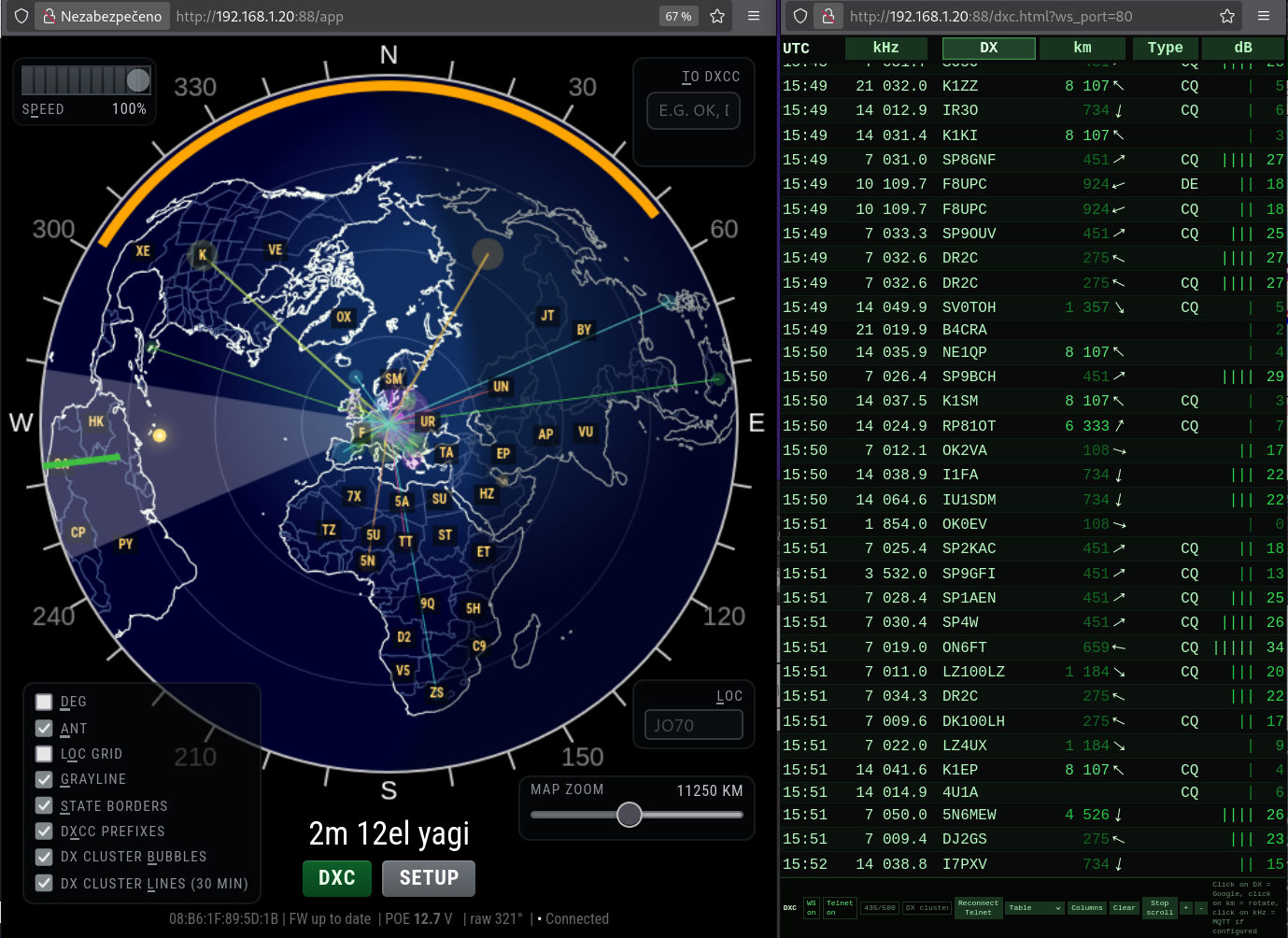
Preview from Firmware release 20260503
- BUY on hamparts.shop
- KIT version V. (release 2023)
Quick start guide
Hardware
Supported:
- Three type azimuth potentiometer
- three wire from 500Ω to 10kΩ resistance
- grounded two wire from 500Ω to 1kΩ
- thre wire, used one turn from multiturn (typicaly 10kΩ)
- Two azimuth CW/CCW pulse inputs
- DC motor up to 28V/3A with smooth start/finish (PWM)
- AC motor max 50V/8A
- Brake max 50V/8A
- Natively supports 3D printed rotator
- Optional external control unit Gyrotator
Source
- Firmware
- 3D print model case
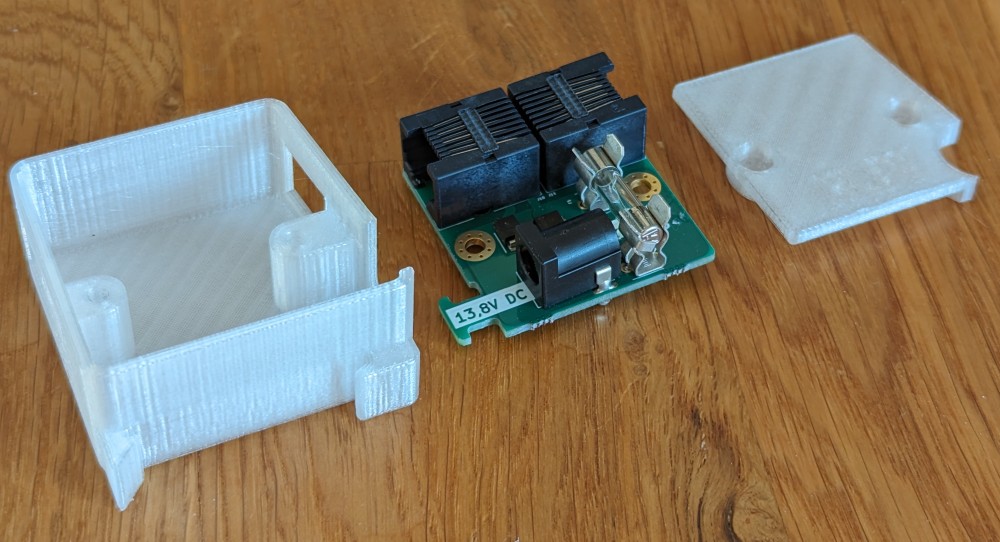
- Enclosure .stl for POE injector
- Enclosure .stl (version mount on 3D print rotator)
- Electronics
- .PDF schematics
- Optional 3D print rotator
- Optional external control unit
Functionality
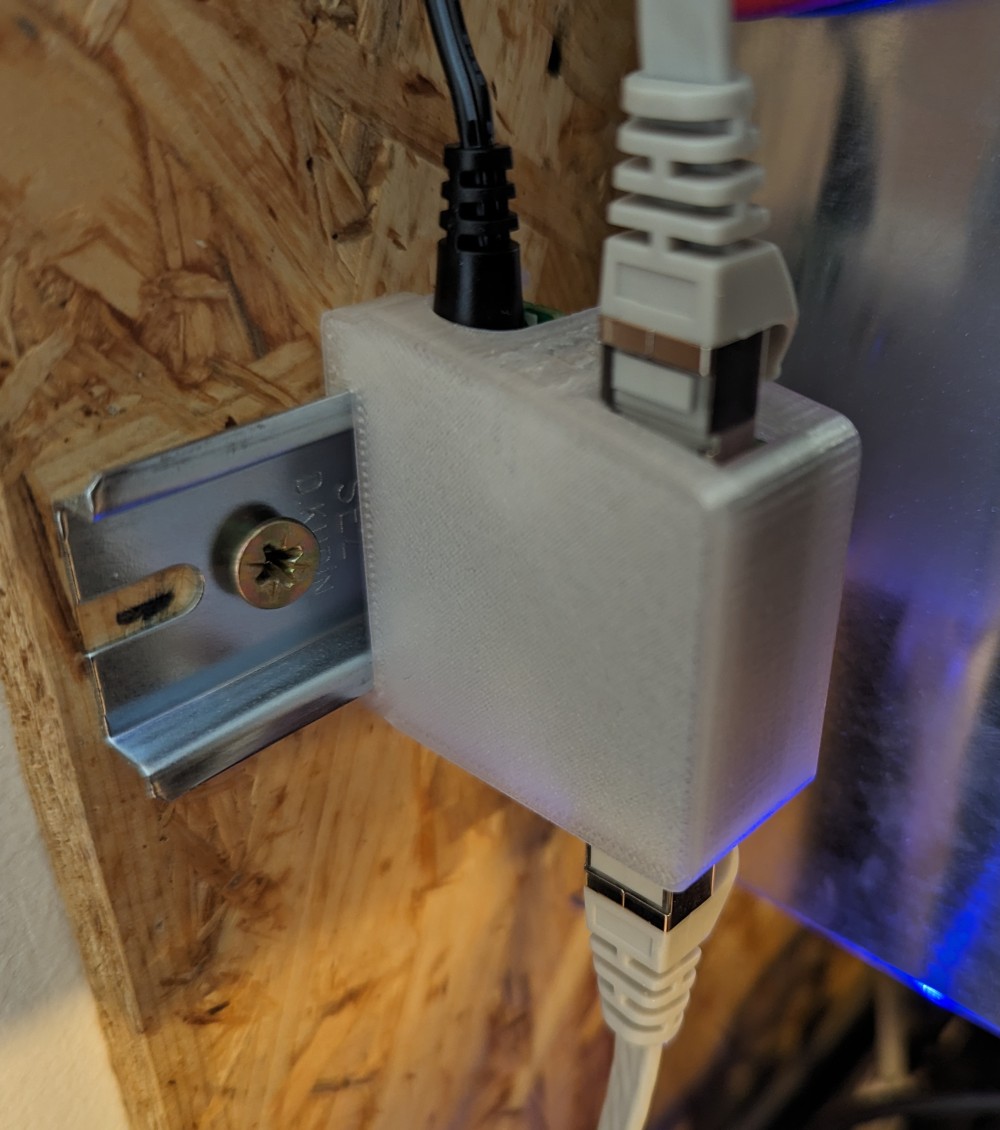
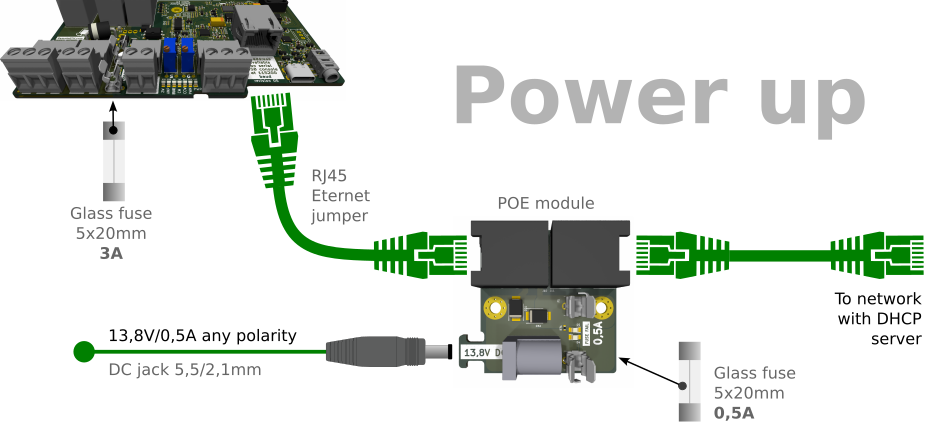
- Remote powered by POE - need 13,8V to 15V/500mA source, mounted to 35mm DIN rail
- Switching between three and two wire azimuthpotentiometer in setup page
- Enable preamp and shift op amp in setup page
- Local control with CW paddle via 3,5mm stereo jack connector
- Galvanically isolated AC or DC motor control, including DC PWM
- Working rotator without hardware endstops - replace by two (low/high) software adjustable forbidden zones in end positions
- MQTT for integrated to your main ecosystem, typicaly NodeRed
- MQTT Wall - web clent shown all topics included
- Overlap support, for example 405° range, with rotate to short direction
- Usable nearest to rotator, directly on tower, or in hamshack
- Status LED while using front panel preset knob (indoor desktop use only)
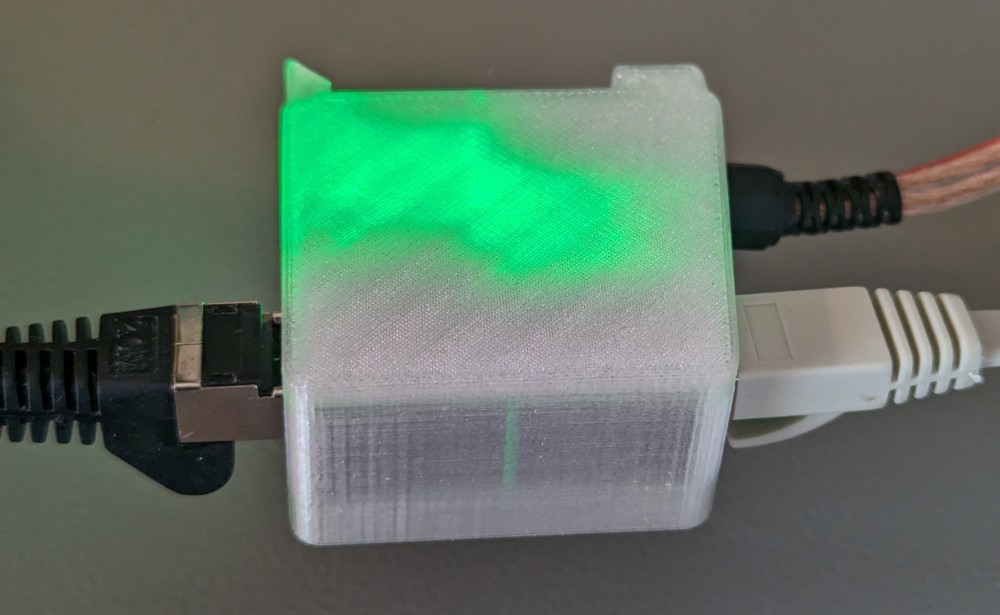
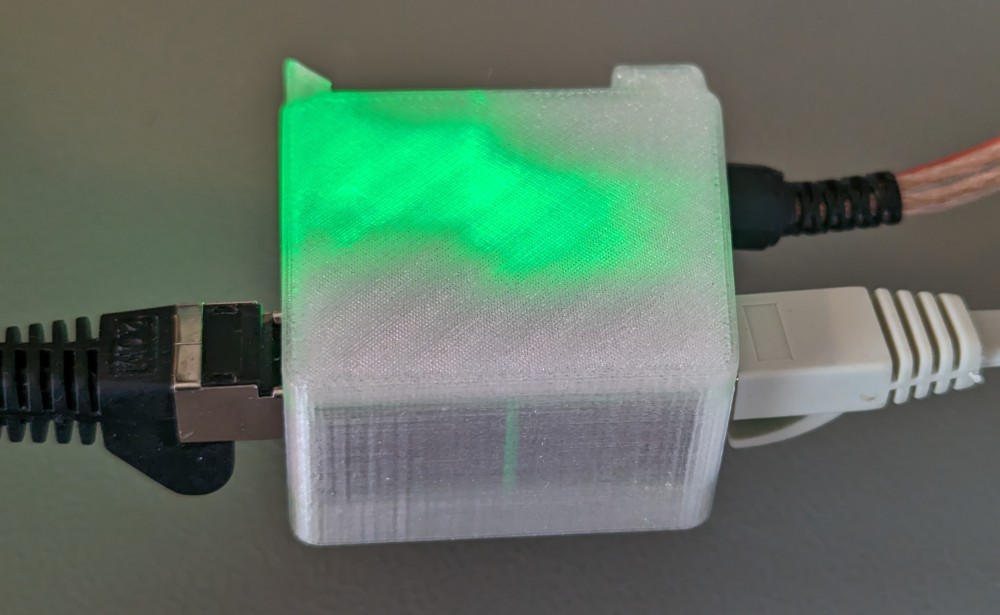
- LED showing fuse failure on main board or POE interface
- Three safe stop watchdog - 60 sec after firmware without answer, max 90 sec rotate, max 10 sec without 10 grad azimut change during rotate
- Under 11V voltage POE power watchdog
- Warm up timer for stable value during setup
- Firmware detects the hardware version and displays it in the web interface
- Optionaly controled (via MQTT) by Gyrotator independent hardware based on M5Stack fire https://github.com/ok1hra/gyrotator
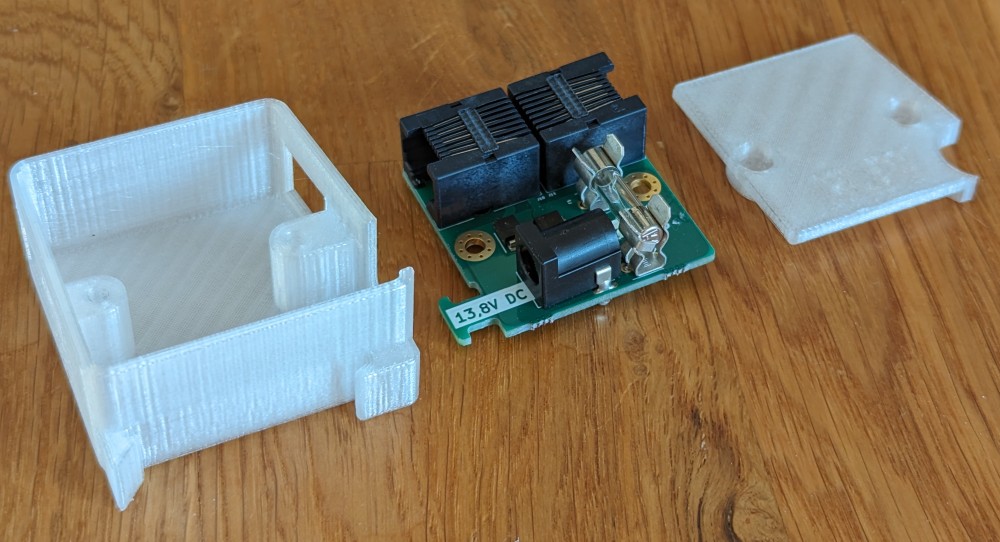
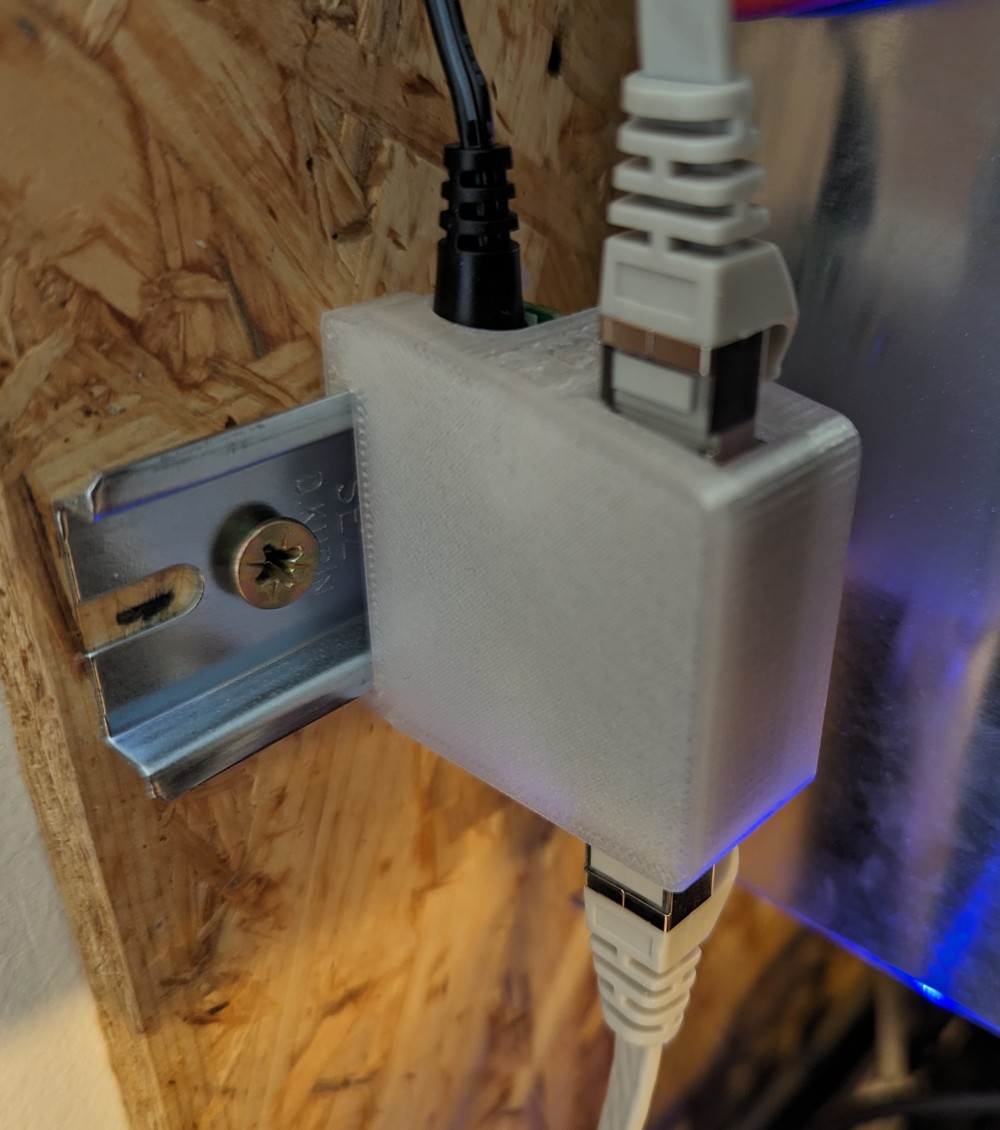
Four mounting methods
Outdoor on tower 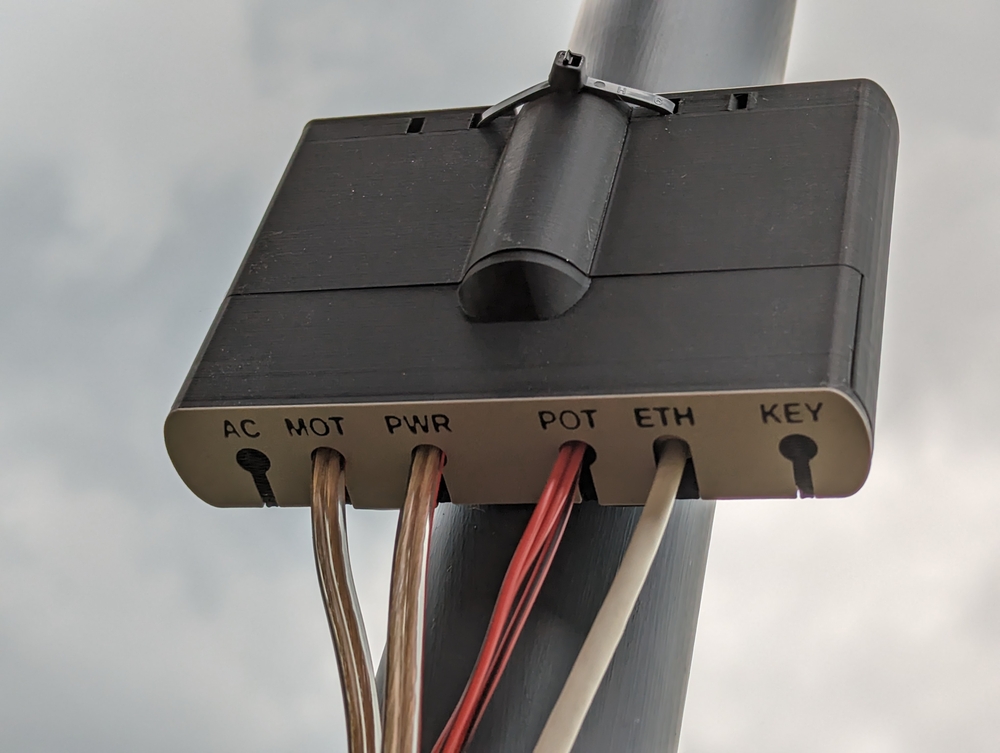 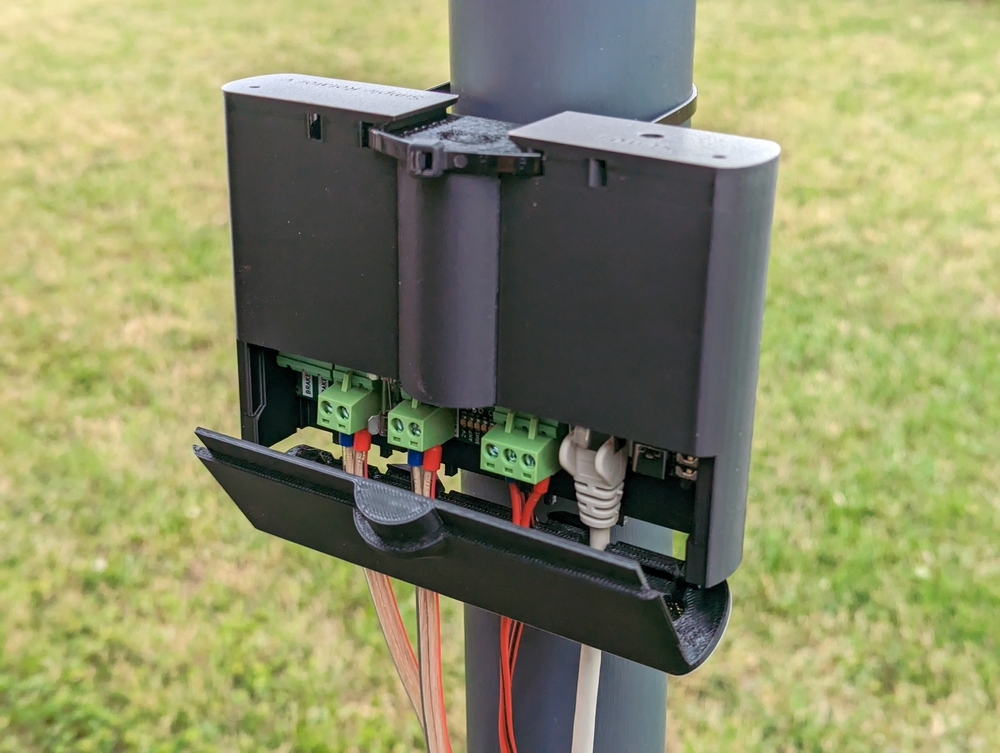 | Outdoor, part of the 3D printed rotator (optional) 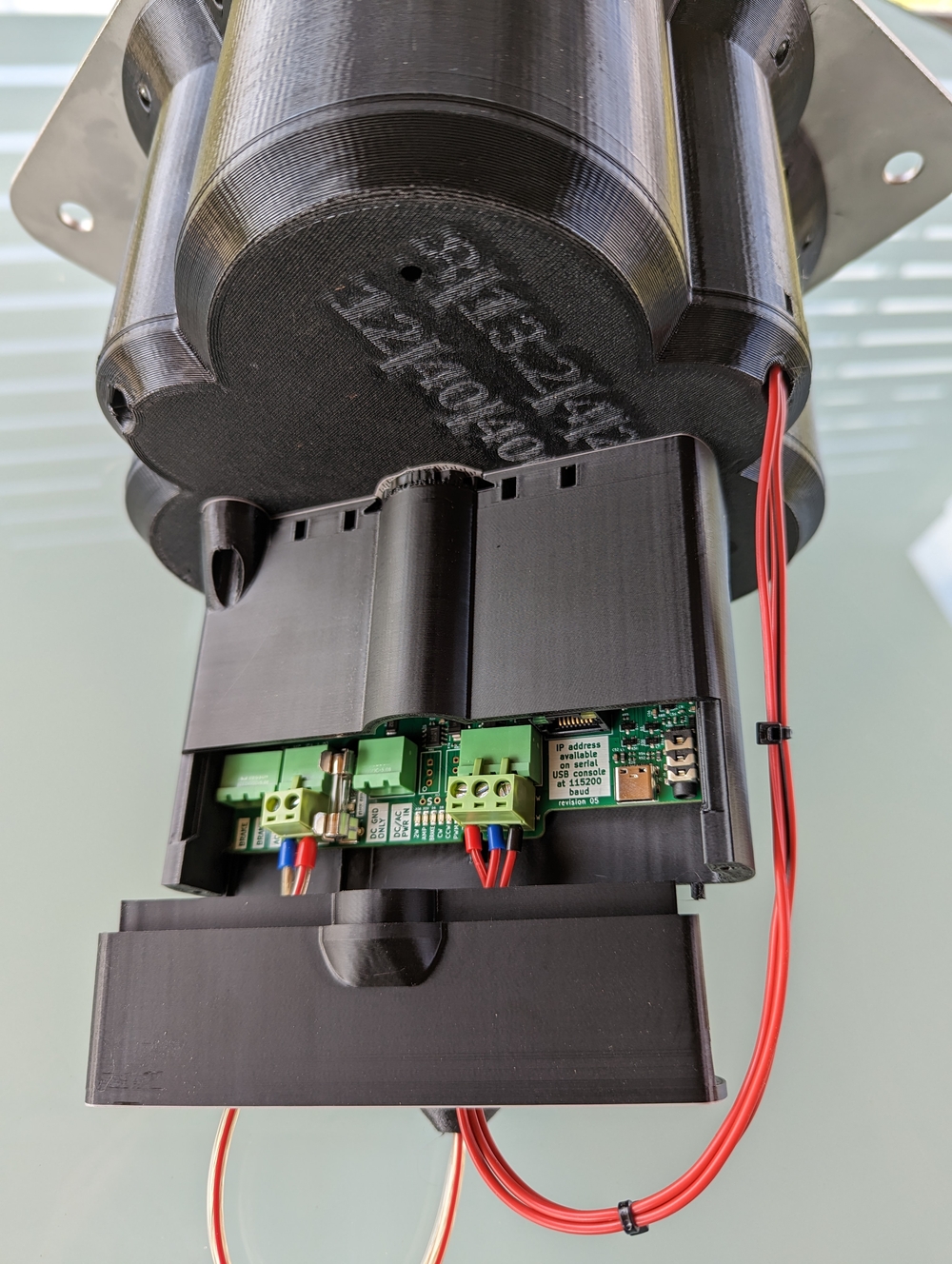 |
Indoor on 35mm DIN rail 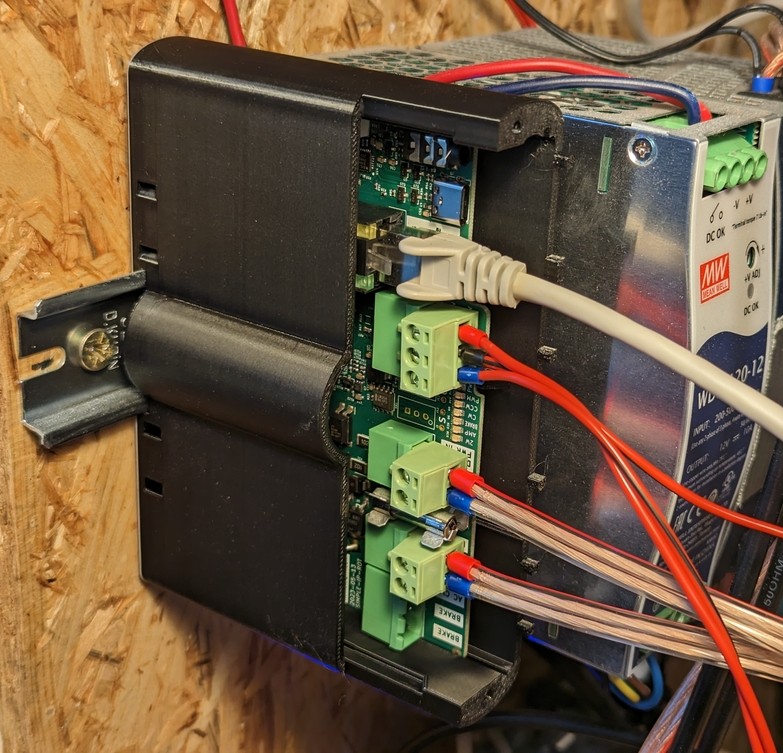 | Indoor to your desktop (optional) 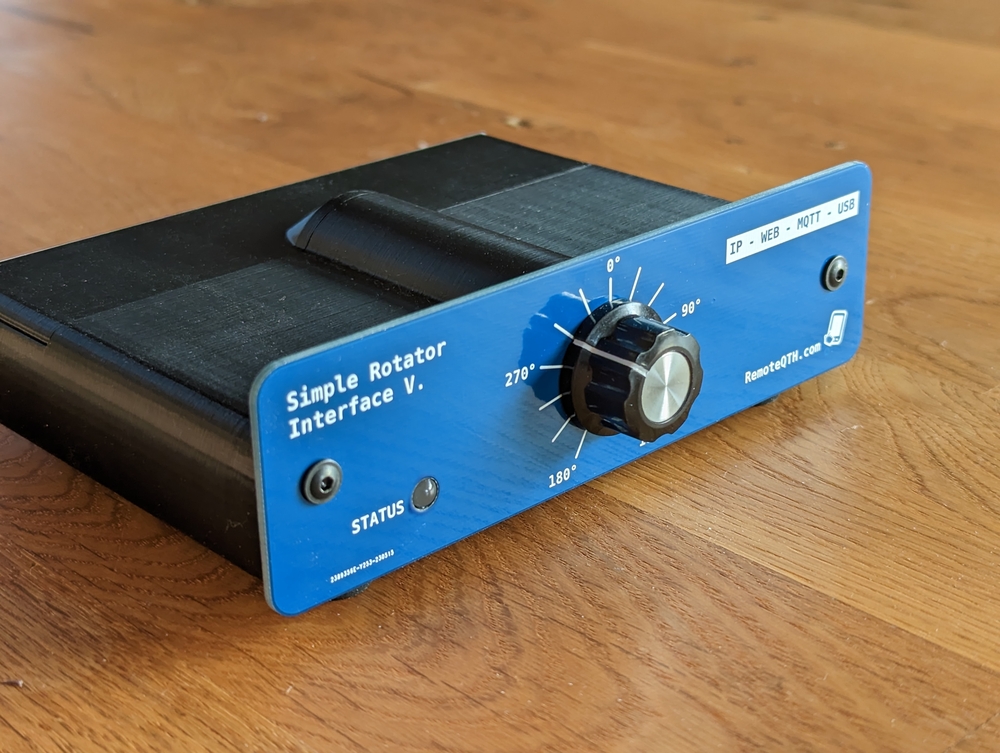 |
Six control source at the same time
| Web interface with azimuthal control map, selectable URL bitmap or Vector map, with optional grayline and Sun position 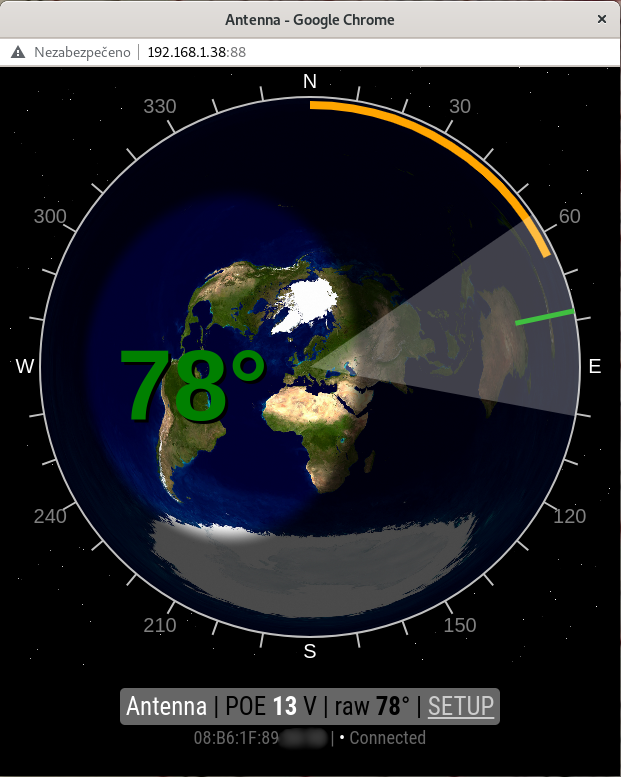 | Gyrotator Optional controller on external hardware 5Stack FIRE 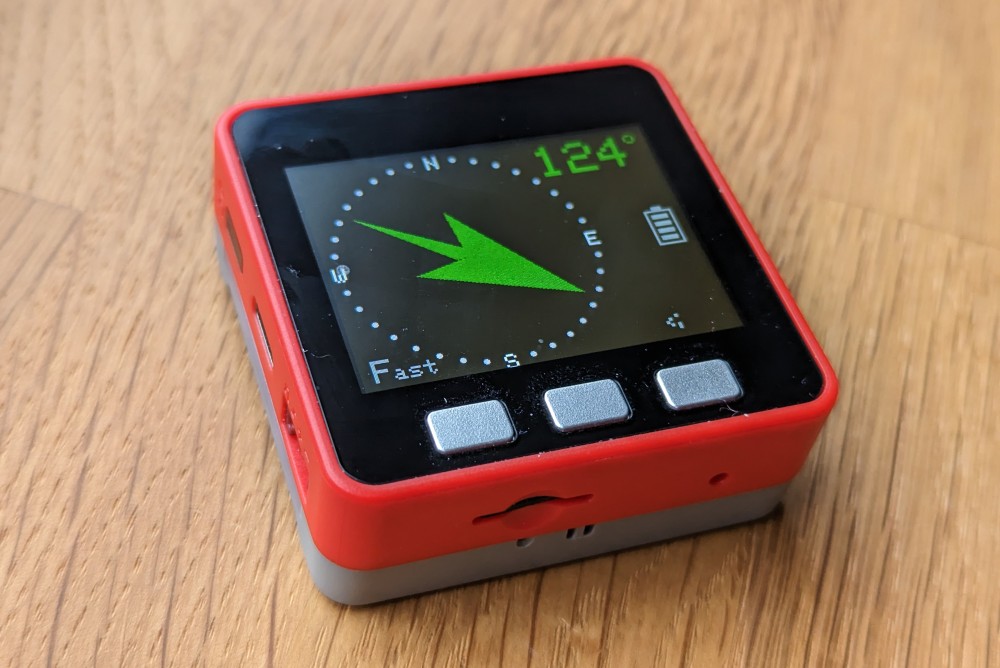 YouTube video | MQTT (mqtt-wall include) 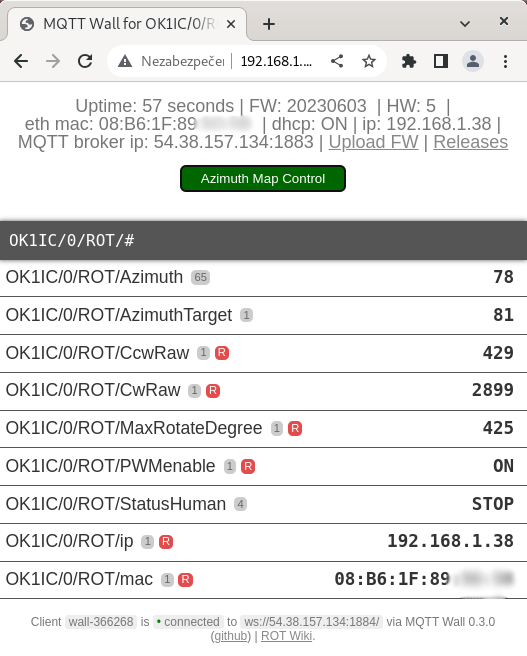 |
| USB GS-232 protocol (commands: R L A S C Mxxx O F) 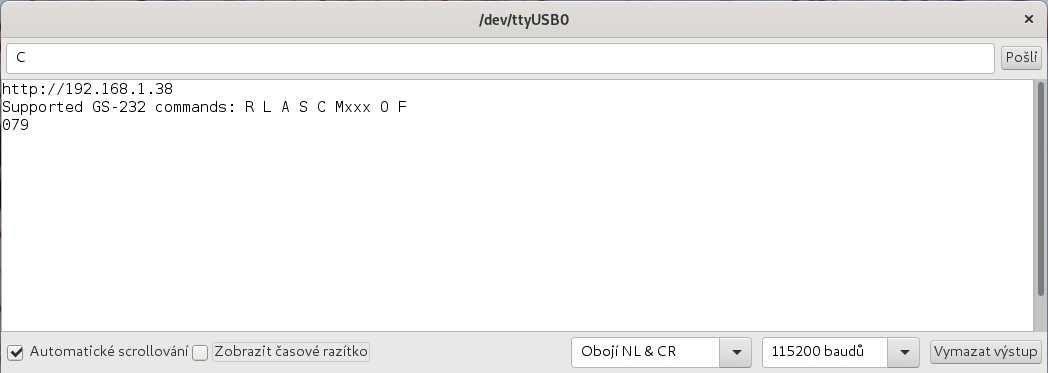 | CW paddle - indoor desktop use - or for manipulate with rotator on DIN rail, or on mount on tower 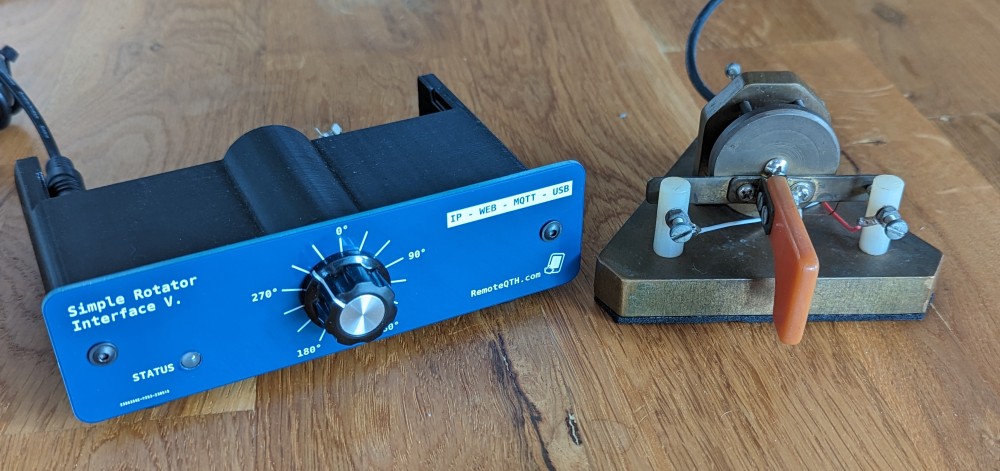 | Optional front panel preset knob works independently without a GUI, together with the status LED (indoor desktop use only) 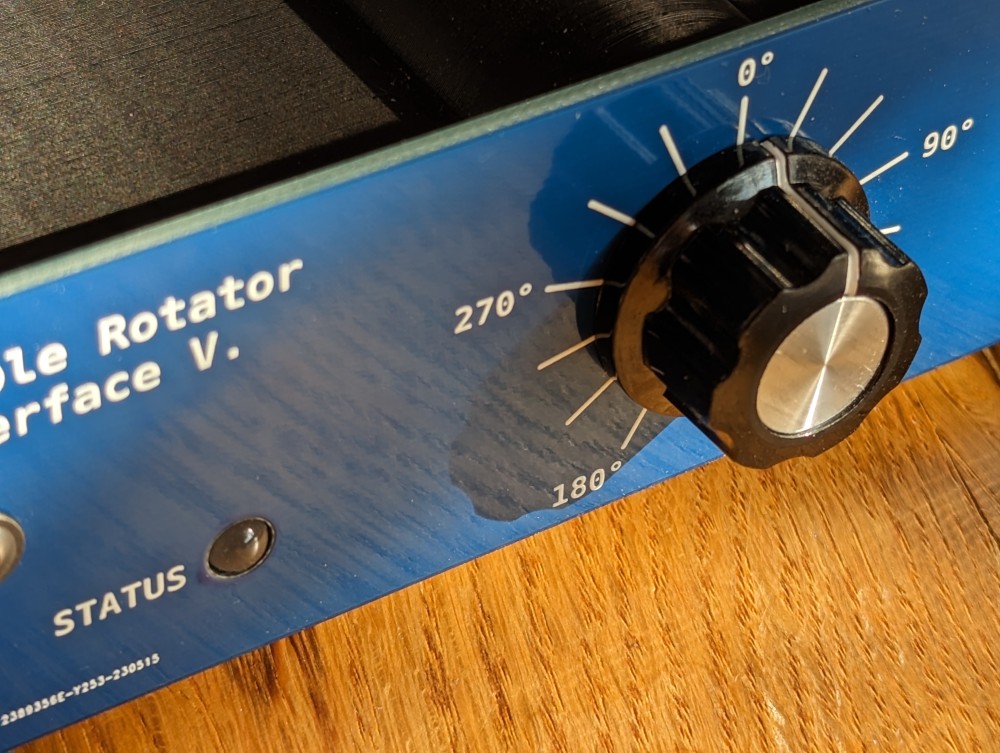 |
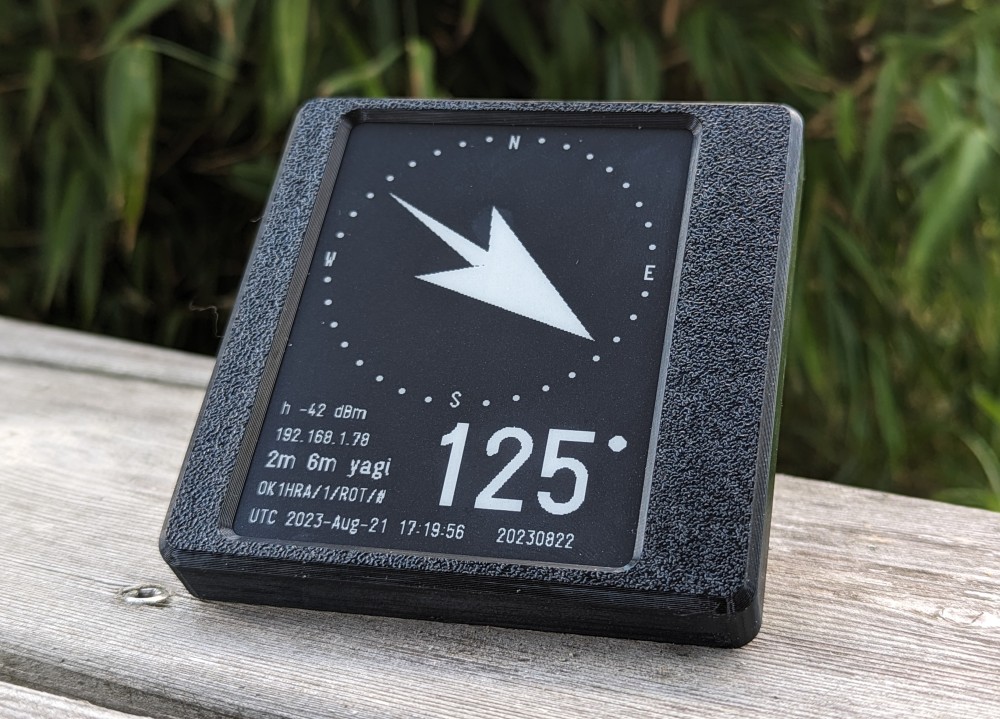
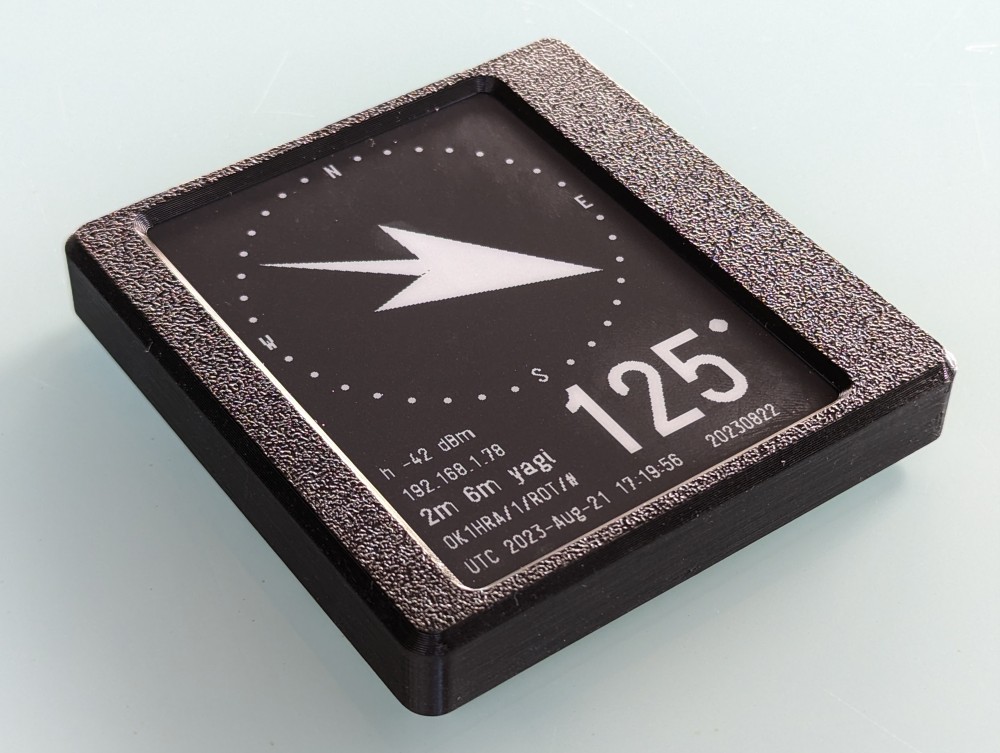
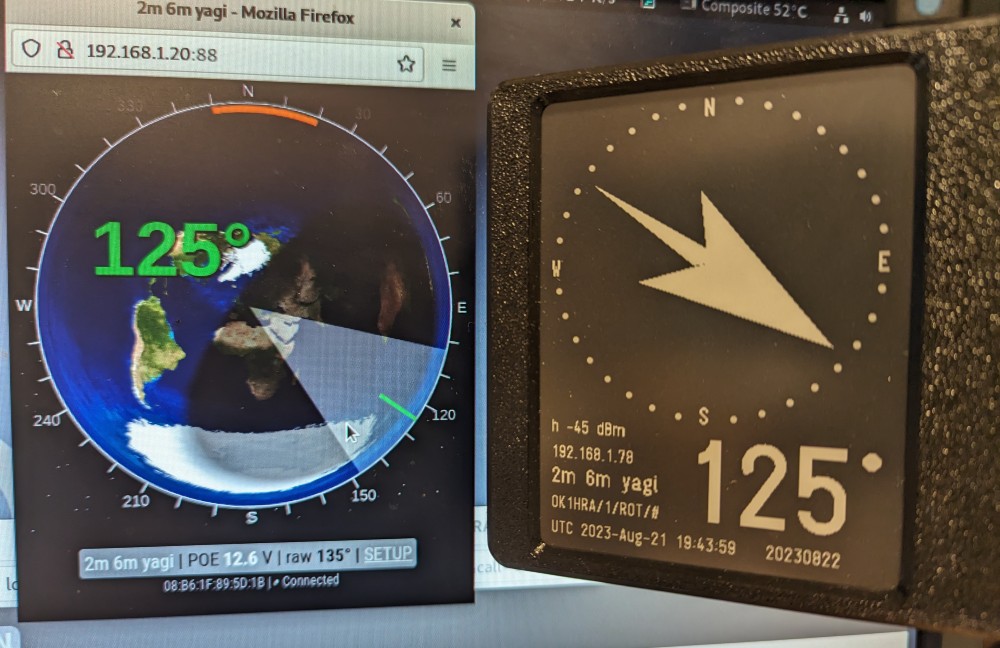
WiFi e-ink display
- The last azimuth remains on the display even after turning off the rotator.
- Optional display on external hardware from LaskaKit - ESPink-42 ESP32 e-Paper
- It is not used to control the rotator, only to display its rotated state.
Web interface
- Adjustable width of the antenna radiation angle
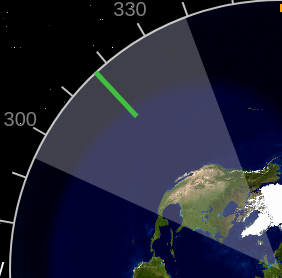
- Vector map mode with locator-based center, live zoom control and multiple color themes
- Optional grayline overlay with configurable darkness and configurable NTP server
- Optional Sun position marker above the map
- Elevation mode for the vector map, replacing the normal map with a dedicated upper-semicircle sky display
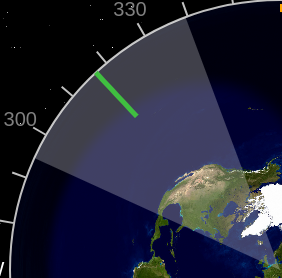
- Rotate with one click to map
- If click during run, stopped rotation
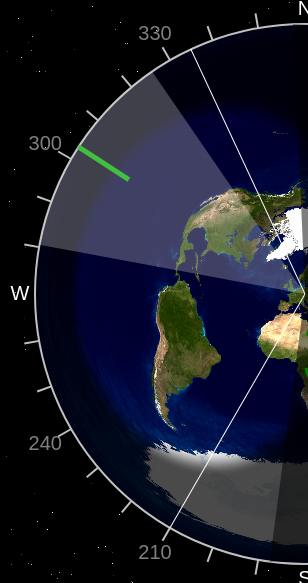
- Smaller range than 360° shows end limits
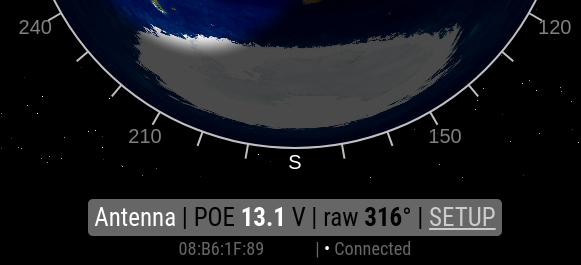
- Show connected status between web page and rotator
Upload firmware
Recovery the entire IP rotator firmware, or upgrade from version 2025 and older
- Open url https://ok1hra.github.io/IP-rotator/ in Google Chrome or Microsoft Edge
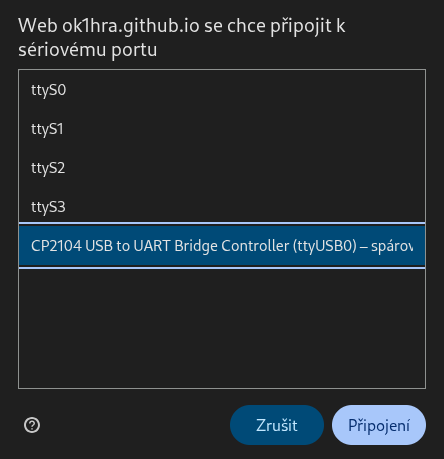
- Press the Connect button and select CP2104 USB to UART Bridge Controller and press Connect
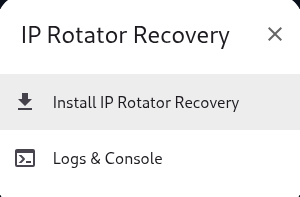
- Select the Install IP Rotator Recovery option
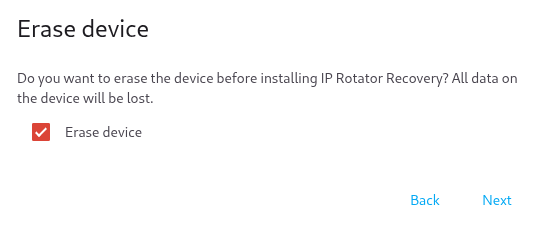
- Confirm the Erase device option and Next
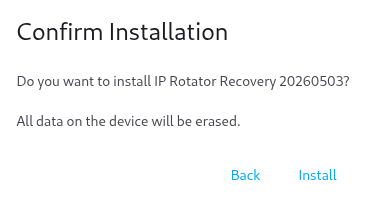
- Confirm the installation by pressing Install
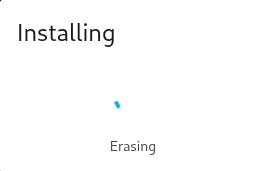
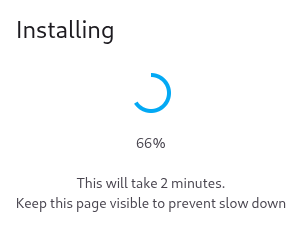
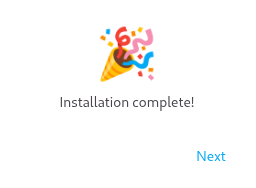
- Wait until the installation is complete
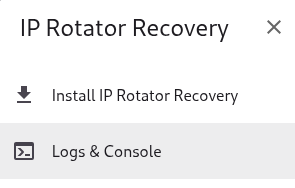
- Next, select the Logs & Console option
- In the Logs window, press Reset Device
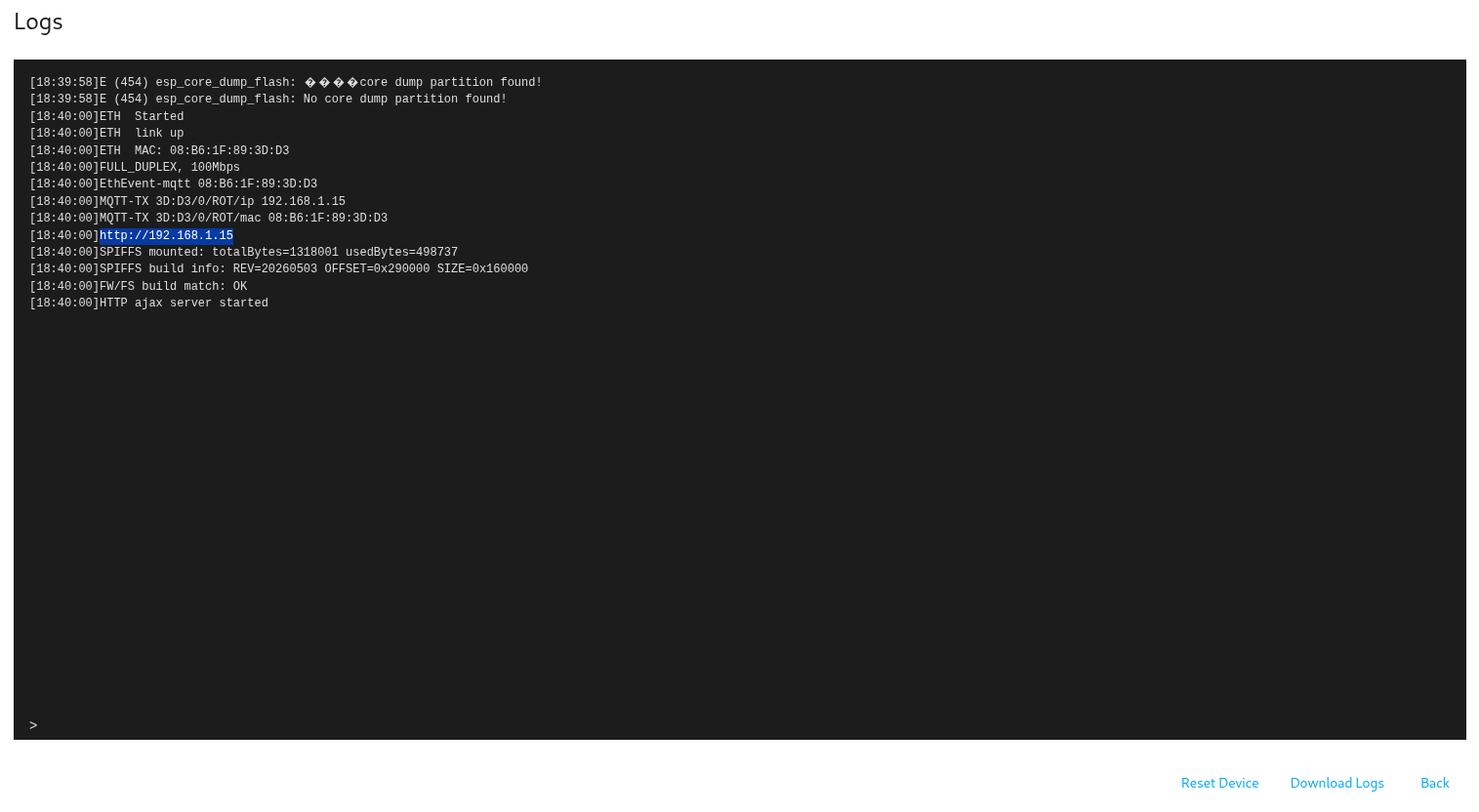
- After the reset, you will find the IP address of the device in the list, which you enter in your browser
- The whole process can be seen in the following video
Update with EasyOTA
From time 10:45
Compile
- Install Arduino IDE rev 1.8.19
- Install support for ESP32
- Install these libraries in the versions listed
- WiFi rev 2.0.0
- EEPROM rev 2.0.0
- WebServer rev 2.0.0
- Ethernet rev 2.0.0
- ESPmDNS rev 2.0.0
- ArduinoOTA rev 2.0.0
- Update rev 2.0.0
- AsyncTCP rev 1.1.1
- ESPAsyncWebServer rev 1.2.3
- FS rev 2.0.0
- AsyncElegantOTA rev 2.2.7
- PubSubClient rev 2.8
- Wire rev 2.0.0
- Select board 'OLIMEX ESP32-PoE'
- Connect the rotator with a USB-C cable and select the corresponding port in the arduino IDE
- Now you can compile and upload code using USB
Connection
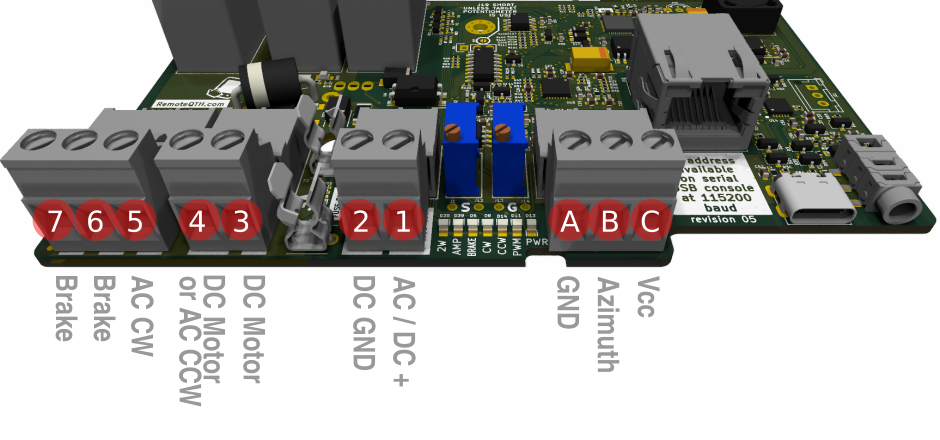
General description of connectors, individual variants detailed below
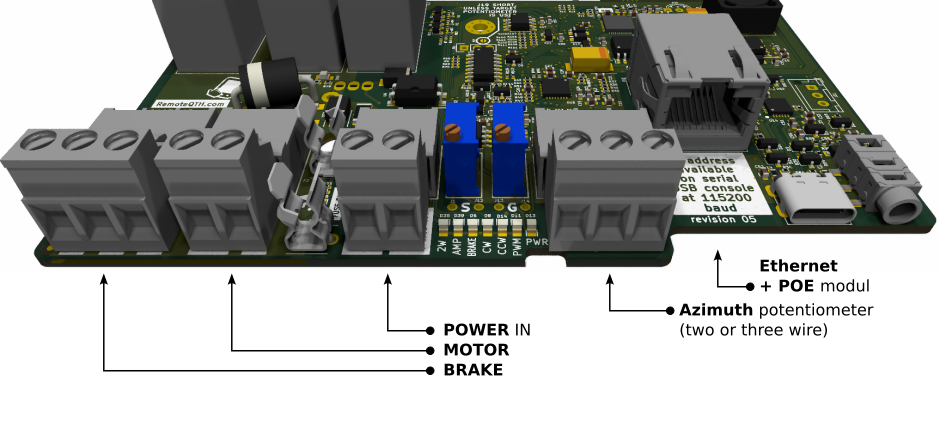
POE power module
LED showing if fuse failure on main board or POE interface
Connection examples
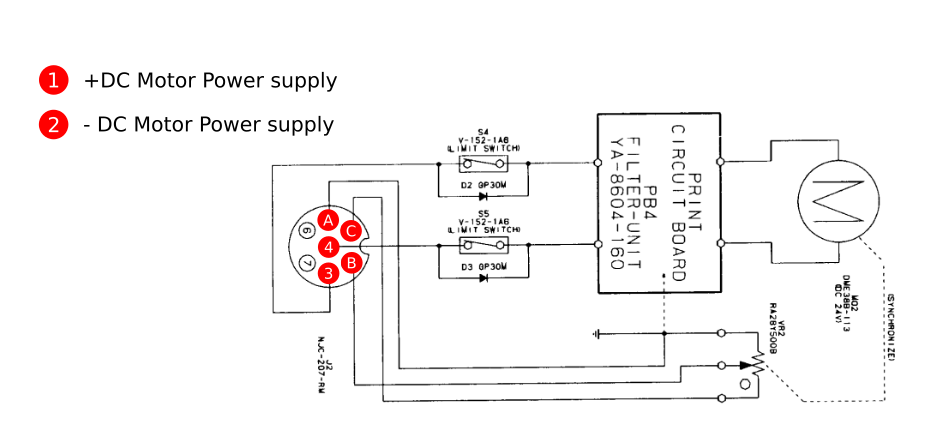
Yaesu G-2800DX
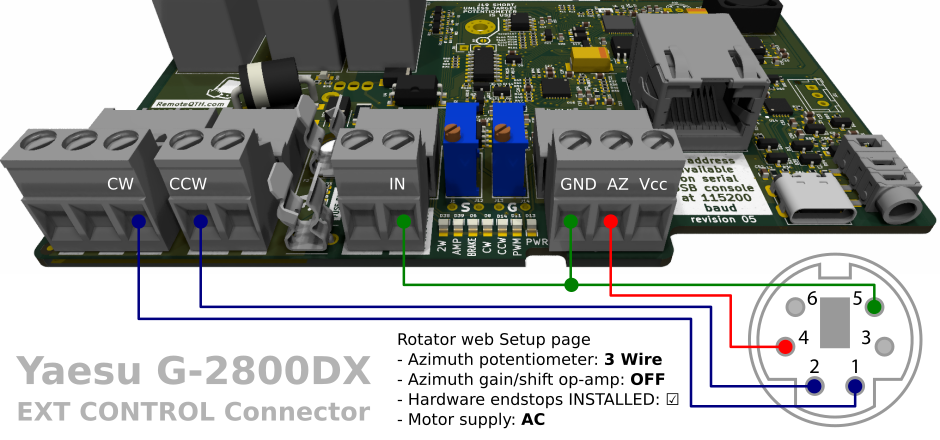
TERMINALS
YAESU G800SA / G1000SA
Simple Rotator Interface V. is used as a replacement for the original control unit with its own DC power supply for the rotator motor.
Terminal connection according to the picture (above).
More about DC motor with PWM.
| Setup Web page basic settings - more | |
| Azimuth potentiometer | 3 Wire |
| Azimuth gain/shift op-amp | OFF |
| Hardware endstops | INSTALLED: ☑ |
| Motor supply | DC |
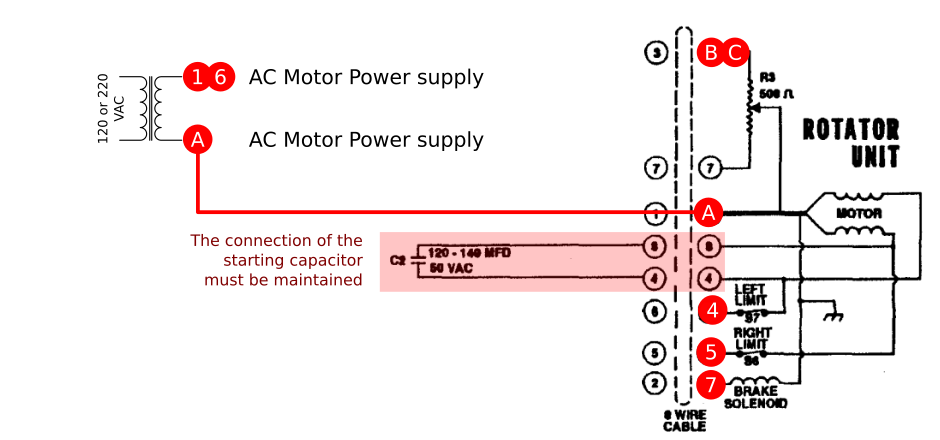
hy-gain HAM IV
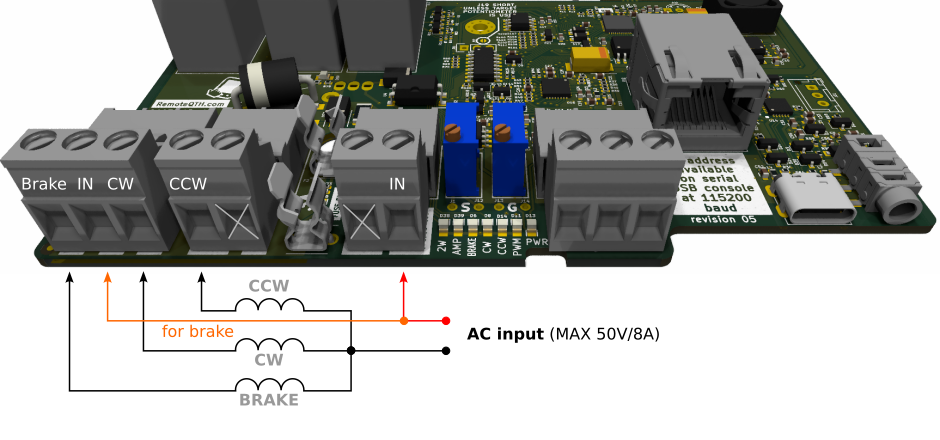
Simple Rotator Interface V. is used as a replacement for the original control unit with its own AC power supply for the rotator motor.
Terminal connection according to the picture (above).
More about AC motor connetions.
| Setup Web page basic settings - more | |
| Azimuth potentiometer | 2 Wire |
| Azimuth gain/shift op-amp | OFF |
| Hardware endstops | INSTALLED: ☑ |
| Motor supply | AC |
ATTENTION - the POE injector must be powered from another source than the source for AC motor!
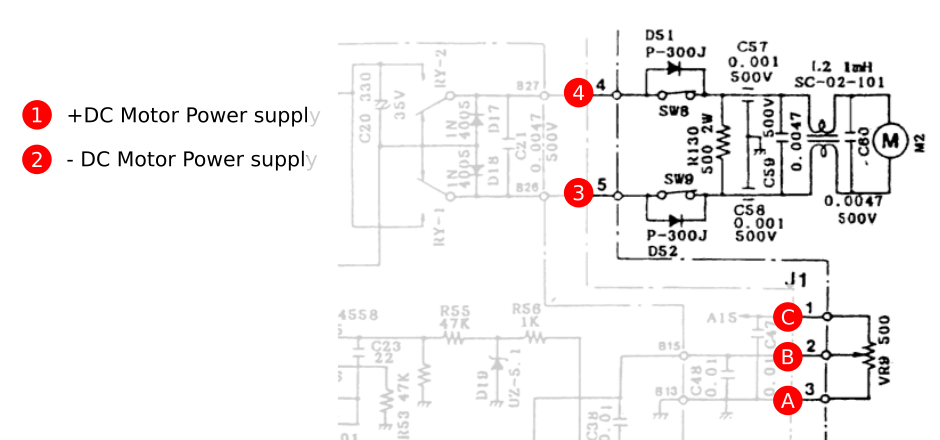
KENPRO KR-1000 / YAESU G800-G1000 / YAESU G800S / YAESU G2800SDX
Simple Rotator Interface V. is used as a replacement for the original control unit with its own DC power supply for the rotator motor.
Terminal connection according to the picture (above).
More about DC motor with PWM.
| Setup Web page basic settings - more | |
| Azimuth potentiometer | 3 Wire |
| Azimuth gain/shift op-amp | OFF |
| Hardware endstops | INSTALLED: ☑ |
| Motor supply | DC |
| DC PWM control | ON (recommended) |
Azimuth potentiometer
Note the connection polarity for systems that share a GND potential
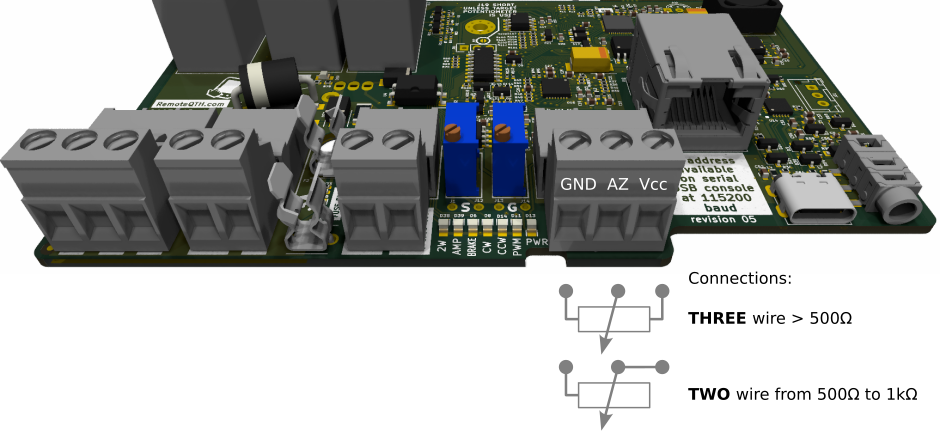
- The type potentiometer used must also be set in the web interface, Setup page. Option “Azimuth potentiometer” 2wire/3-wire
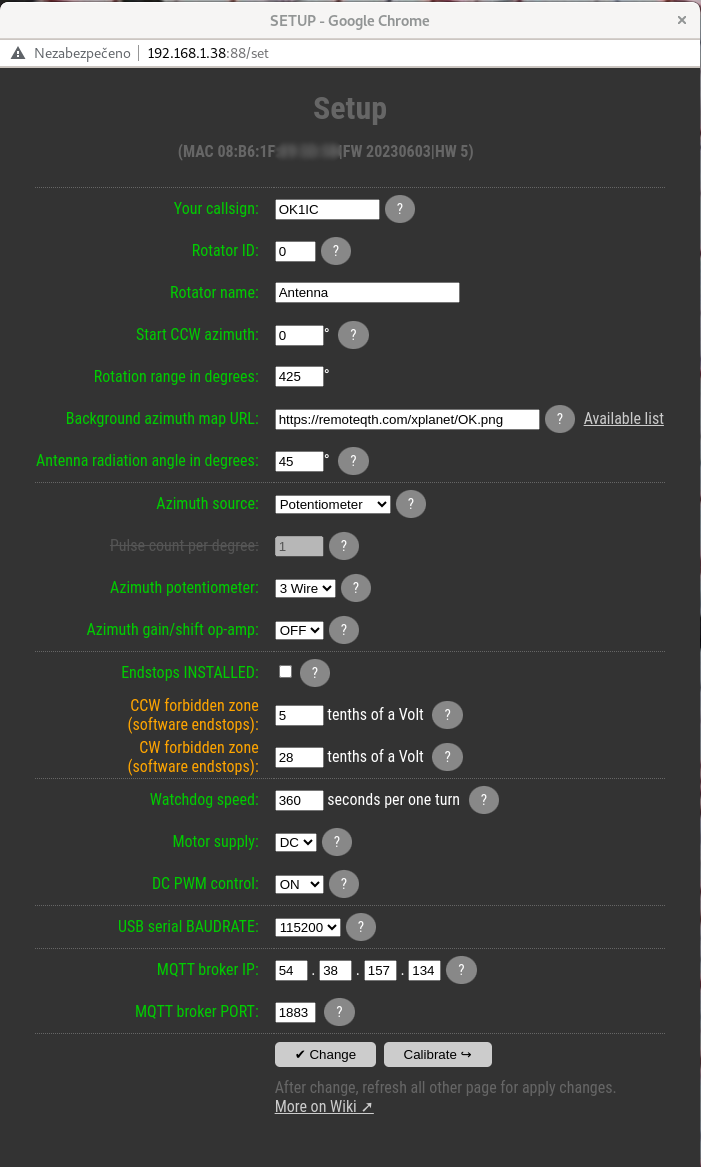
- When using one turn of a ten-turn potentiometer, also activate the “Azimuth gain/shift op-amp” option to ON. About calibrate more in Calibrate section.
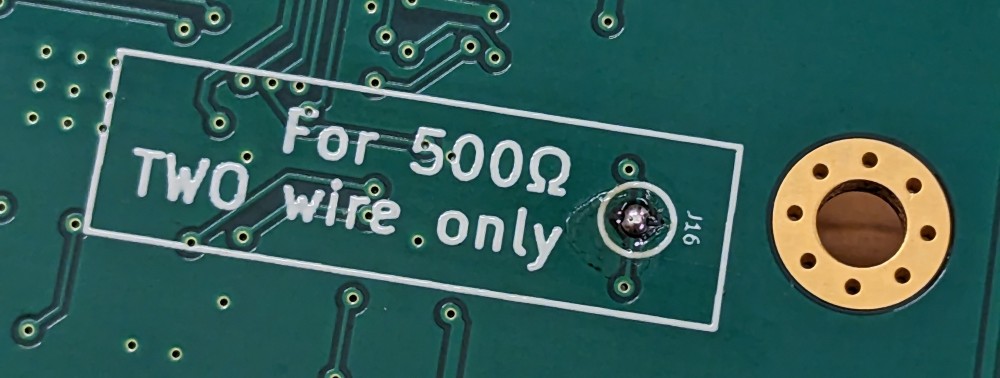
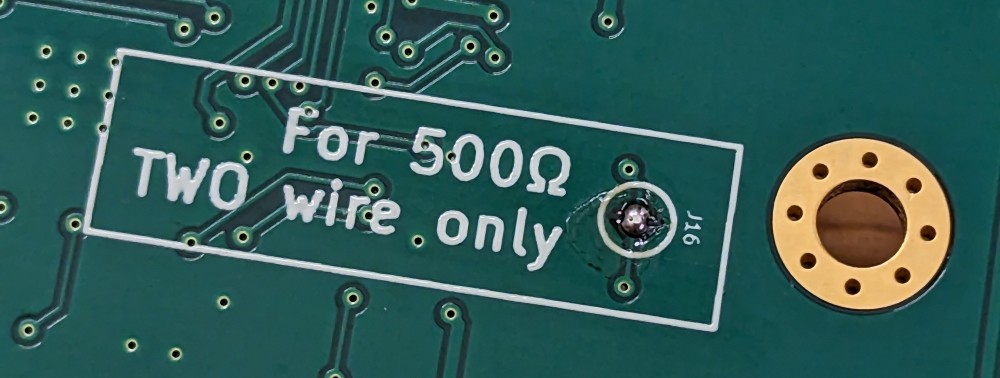
- If you are using a two-wire 500Ω potentiometer, short-circuit jumper J16 on the bottom side of the PCB. Do not use this jumper in other cases.
AC motor
DC motor with PWM
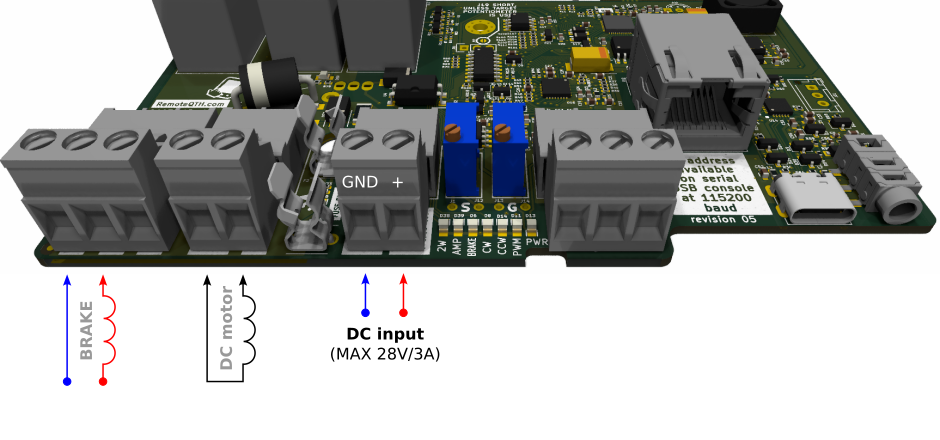
- Activate the PWM functionality on the Setup web page
- ATTENTION
- Observe the polarity of the power supply, otherwise the power mosfet may be destroyed.
- Observe the maximum prescribed loading.
- We recommend using the following safe option with software endstops.
DC motor with PWM, without hardware endstop (safe mode)
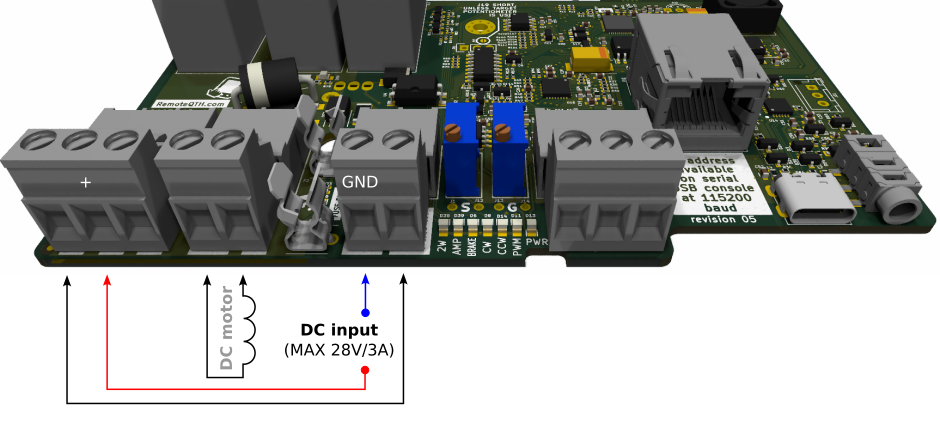
- If you use a rotator without hardware endstops, the destruction of one component (power mosfet) can cause the rotator to crash. Therefore, it is safe to connect one more active element in series (relay intended for the brake).
- Activate the PWM functionality on the Setup web page
- ATTENTION
- observe the polarity of the power supply, otherwise the power mosfet may be destroyed.
- observe the maximum prescribed loading.
DC motor without PWM
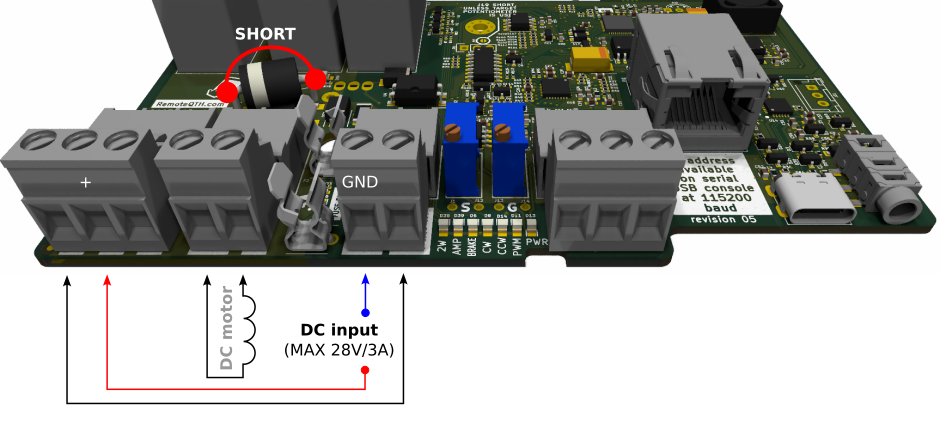
- PWM can be replaced with an external brake relay
- Deactivate the PWM functionality on the Setup web page
- ATTENTION
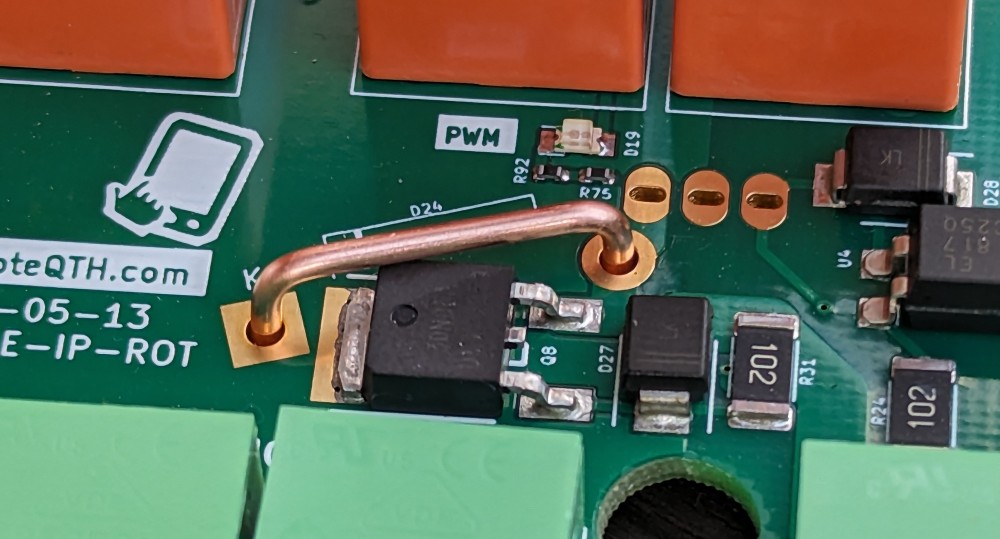
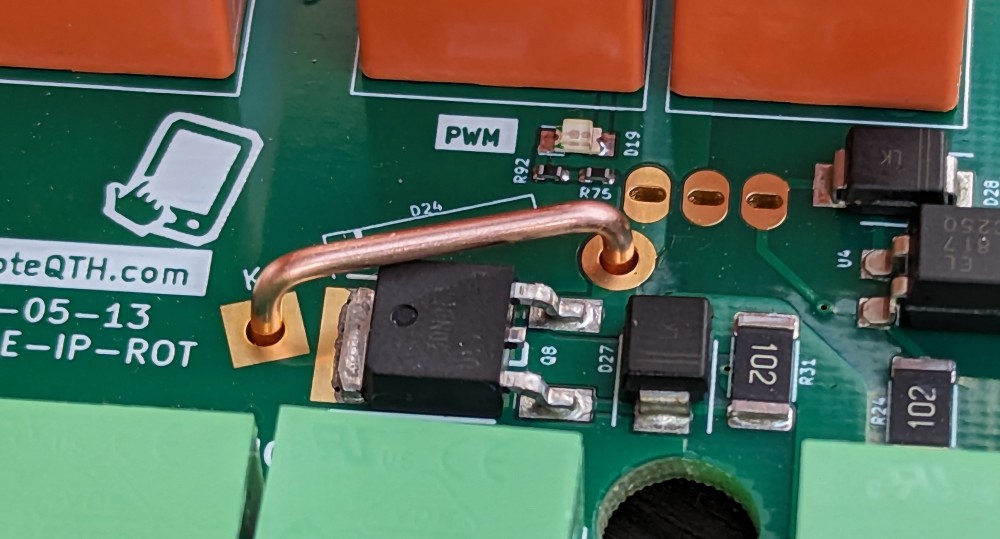
- Don't forget to bridge or replace the diode D24 with a jumper.
- Make the jumper with a copper wire with a cross-section of 1.5 mm2
Pulse Azimuth input
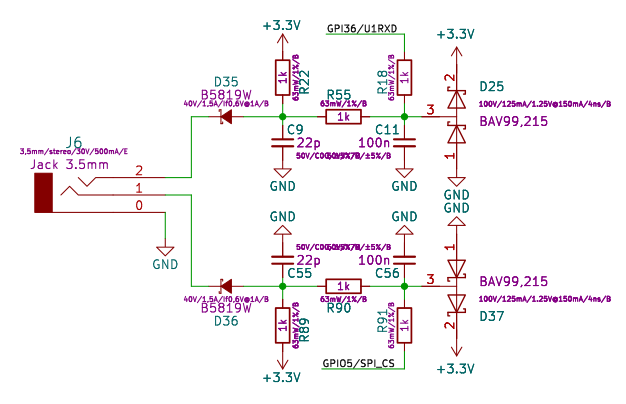
Rotators that have a CW/CCW Pulse output as an azimuth sensor can be connected to the Jack connector (right). What is needed:
- pulse switching elements must be open collector (switching takes place on GND)
- connection according to the picture

- in the setup page in the Sensors and limits block set
- the Azimuth source to CW/CCW Pulse item
- the Pulse count per degree value
- then continue with the calibration page
Schematic of the input circuit
Control, setup and calibrate
LED status
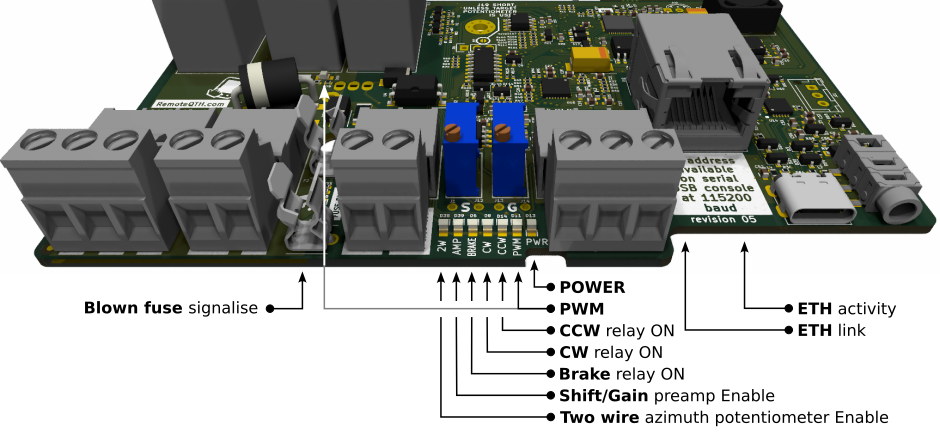
LEDs signal static (PWR) or dynamic (PWM) states during rotator operation
Connect and tune
- The fuse for the motor should be optimally 3A
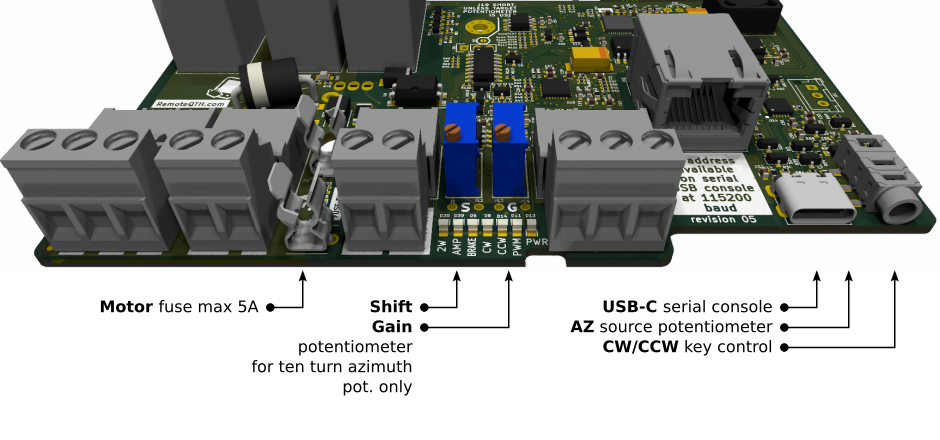
- Two blue, multi-turn potentiometers are used to set the Shift and Gain of the preamplifier in the azimuth measurement mode with the use of one turn from the ten-turn potentiometer.
- The USB-c connector is used for uploading firmware or connecting a serial console. DO NOT use USB-C to power electronics.
- Internal three-pin connector (balls), serves for connecting an optional front panel potentiometer.
- The 3.5mm stereo jack serves for connecting a manual control of the rotator, typically a CW bug.

How to find the IP address of the device
-
- connect POE power supply
- ethernet to a site with an active DHCP server
- The variant can be found using WEB serial
- Open url https://ok1hra.github.io/IP-rotator/ in Google Chrome or Microsoft Edge
- See in video from start to time 00:42
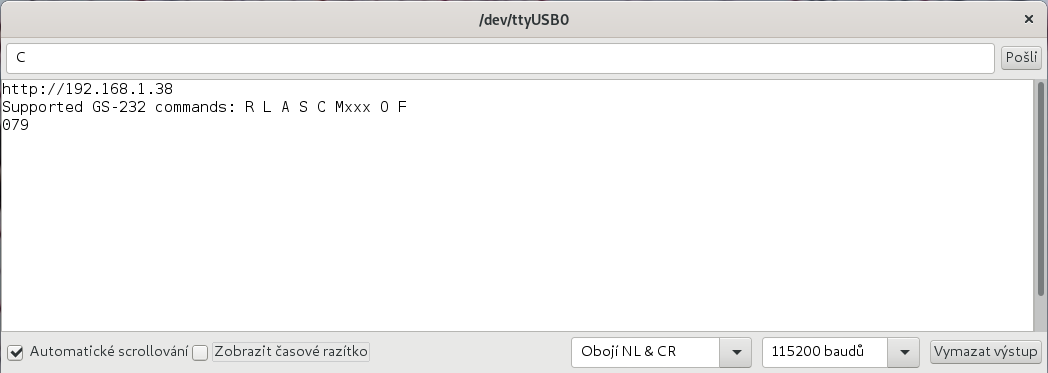
- Variant via USB terminal
- connect USB-C between rotator and PC
- open Arduino terminal with 115200 baud speed
- press ? and enter
- terminal show your IP address
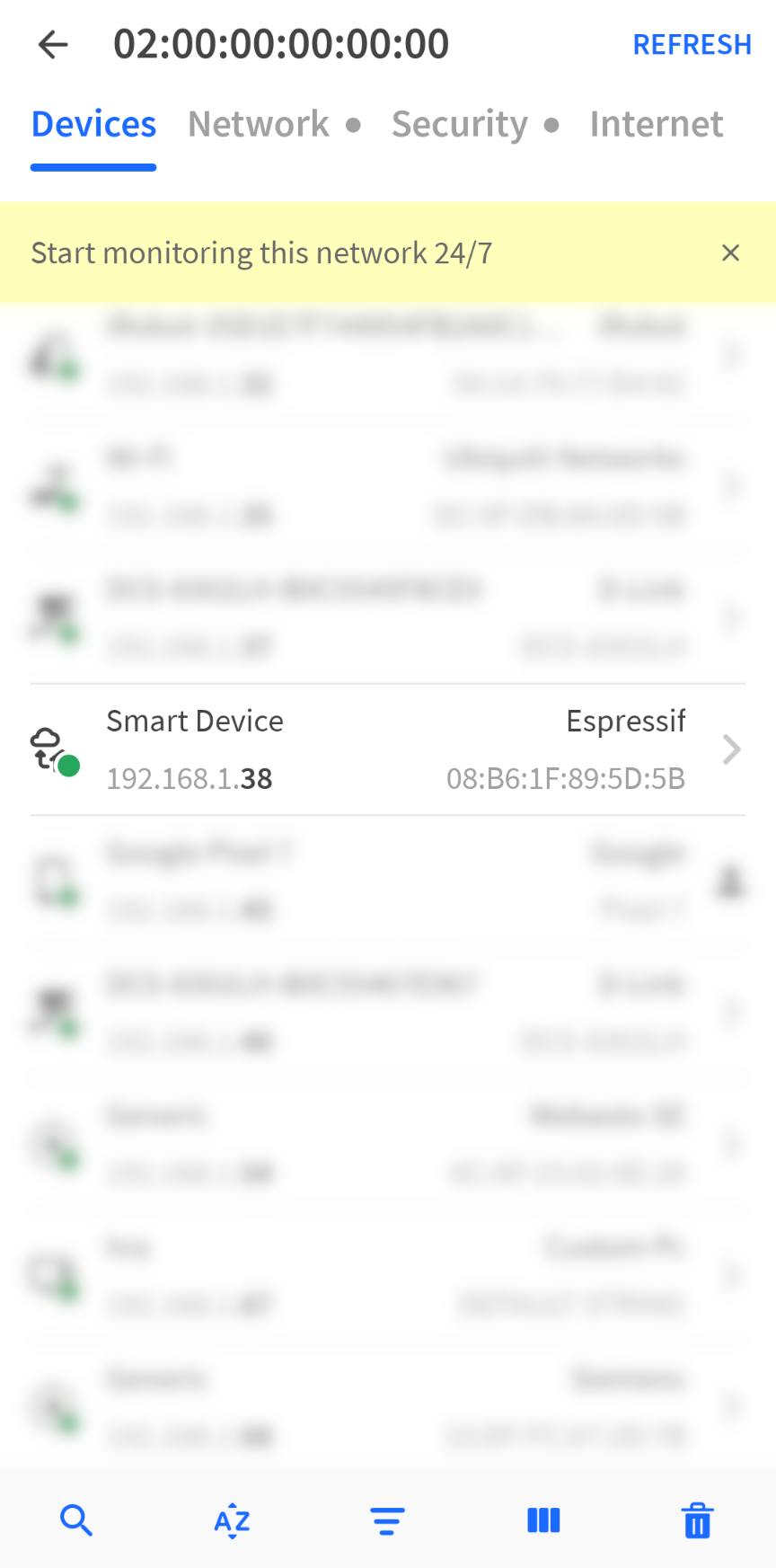
- With the help of the Fing android application
- Install Fing
- Scan local network
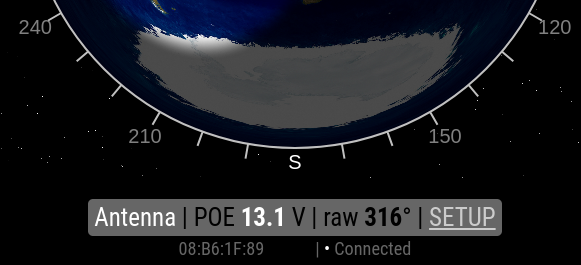
- Find device with brand name Espresiff and begin MAC start 08:B6:1F
Settings using the web interface
Main web page
Open the IP address found using the previous instruction in a web browser http://[YOUR-IP]
How to works
- The first page contains an information header, including a link to the Firmware Upload page and the Release page on GitHub. Give green the button of the link to the control page of the rotator. Below it is the web MQTT client (credit MQTT wall) displaying the data sent or received by the rotator from the MQTT broker - data used to control or debug the rotator.
- This client requests an MQTT instance running on web socket port 1884.
Control web page
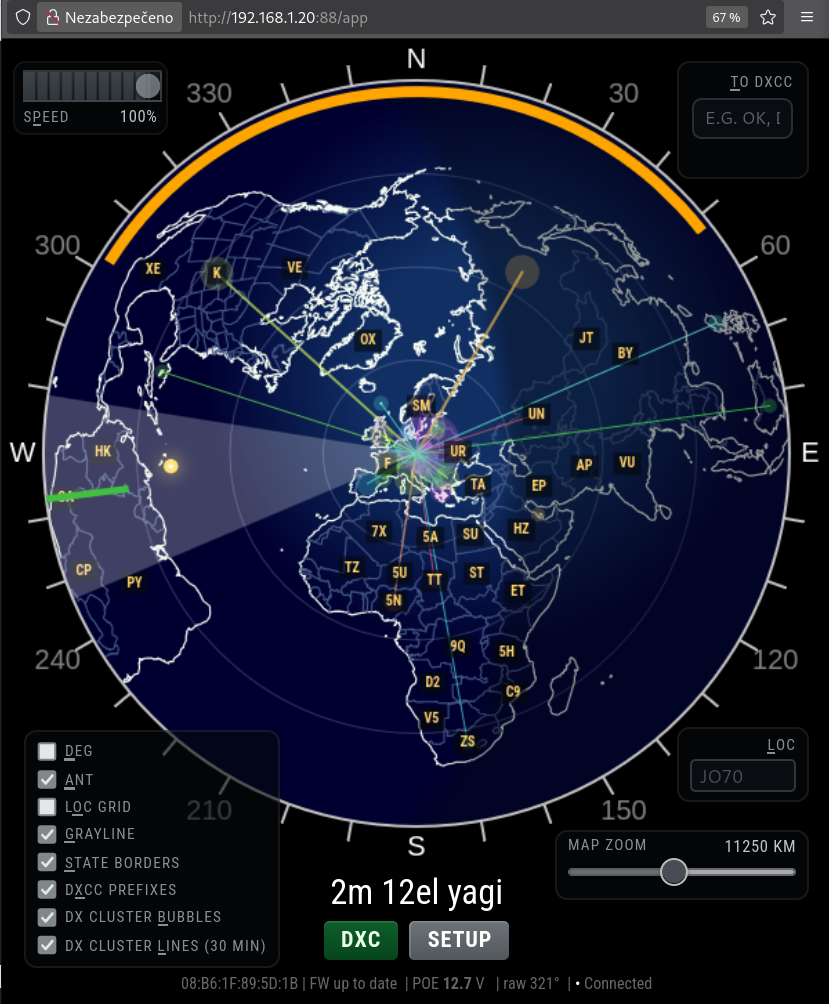
How to works
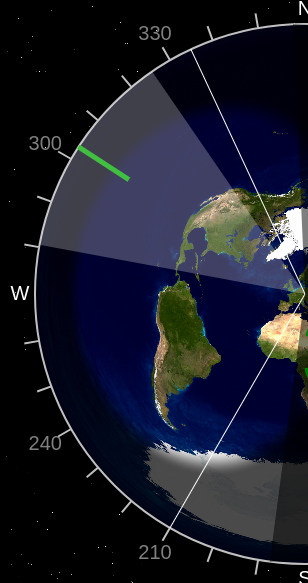
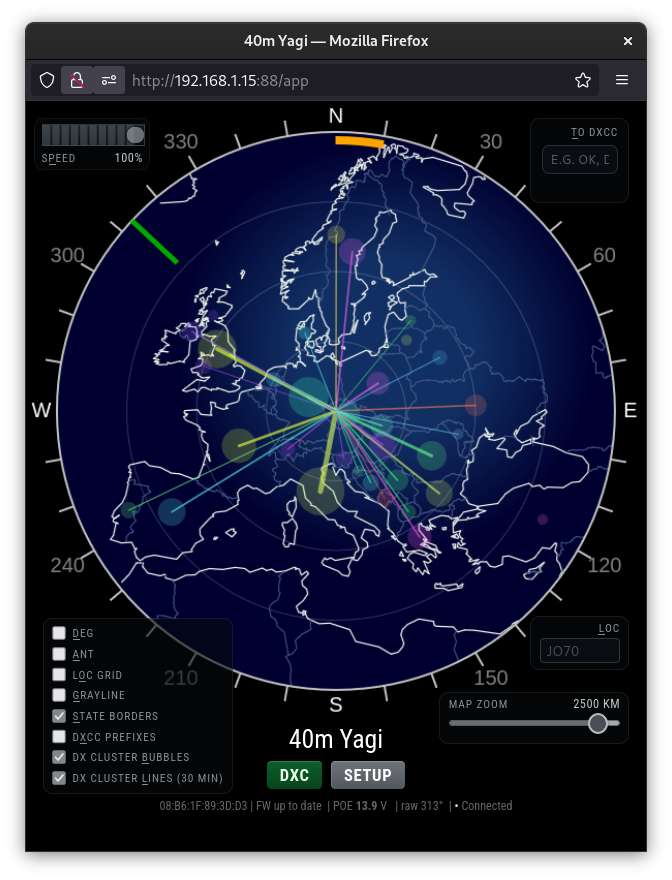
- The basis of the display is an azimuthal map centered in your QTH. You can use either a URL bitmap background or the built-in Vector map mode.
- Vector map uses an azimuthal projection of the Earth with a center defined by a 6-character Maidenhead locator. It shows continent boundaries and supports multiple color themes.
- The vector map can optionally display the current grayline as a semi-transparent dark overlay and the Sun position as a yellow dot. If NTP time is not available, grayline is not shown and the status line displays NTP no answer.
- The direction of rotation indicator is a transparent triangle whose angle corresponds to the width of the antenna's radiation pattern. The center is marked with a green pointer on the scale. The width of the radiation diagram is set in the Setup page, item Antenna radiation angle in degrees.
- COLORS - If the direction is in the free range, the indicator color is green. If the pointer reaches the overlap zone, the color is yellow. If the rotator is in rotated mode, the indicator color is red. If the rotator reaches the endpoints, the color is gray.
- The yellow line on the edge shows the Overlap zone. It is the angle by which one 360-degree revolution is extended.
- Gray bar on the bottom shows. | Antenna name - set in the Setup page, Rotator name item. | The power supply voltage controls the electronics from the POE injector - if it drops below 11.5V, the watchdog stops the rotator. | Raw angle rotated - angle without displacement, as if it were zero degrees north. | Link to the Setup page.
- Below the gray bar is shown, MAC address of the Ethernet interface and website connection status with engine electronics. If it is not connected, the data on the website is not up to date and the rotator cannot be controlled. When grayline is enabled but NTP time is not available, the status line displays NTP no answer.
- CONTROL - by tapping on the map, the azimuth is calculated and the rotation starts. Emergency stop is performed by clicking anywhere on the azimuthal map again.
- The large central azimuth value uses a short pulse animation when the value changes.
- Tip: for a short movement of the rotator, you can click on the map twice in close succession. The motor will only turn on for this time, including the PWM start/stop sequence.
Telnet client
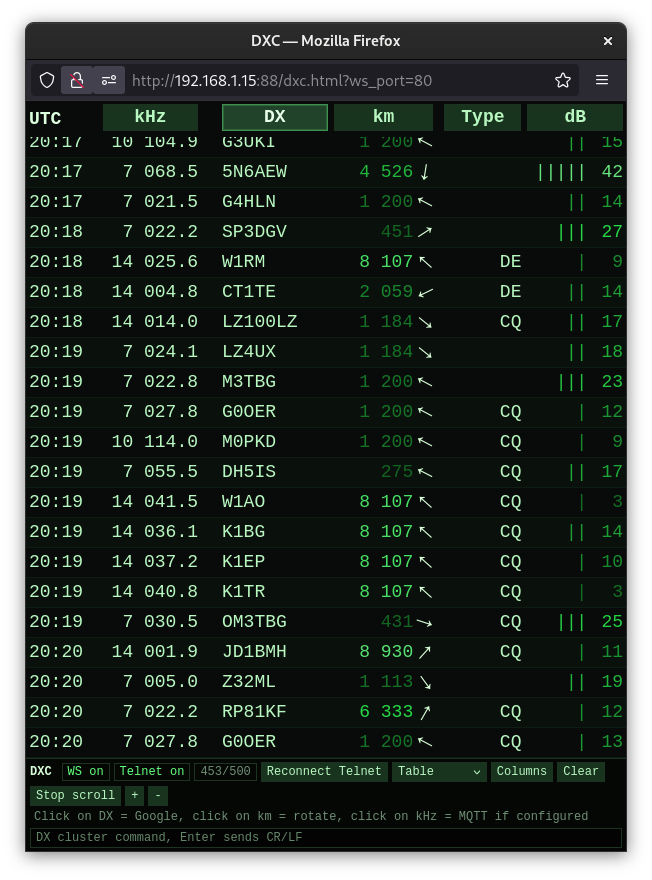
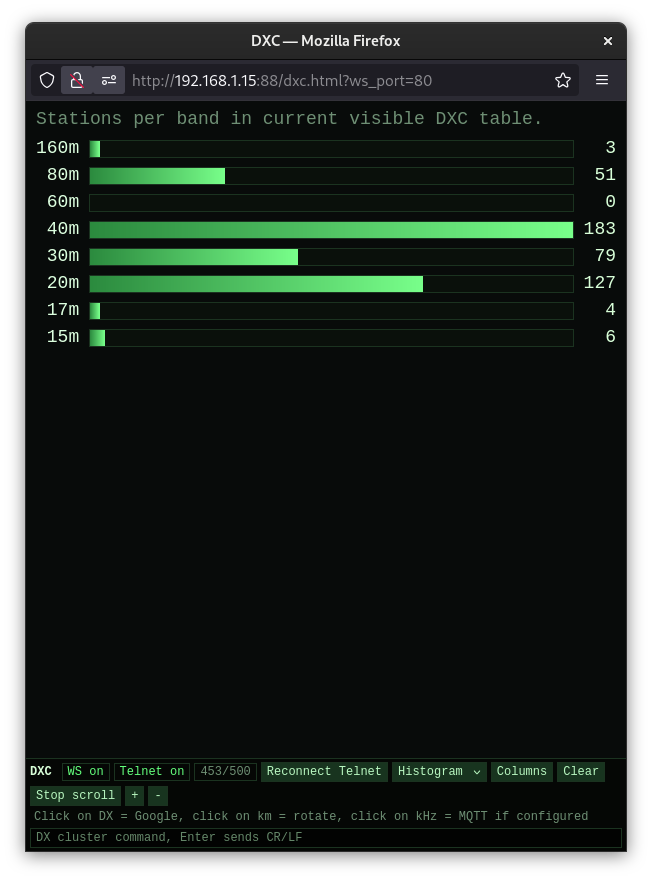
Setup web page
How to works
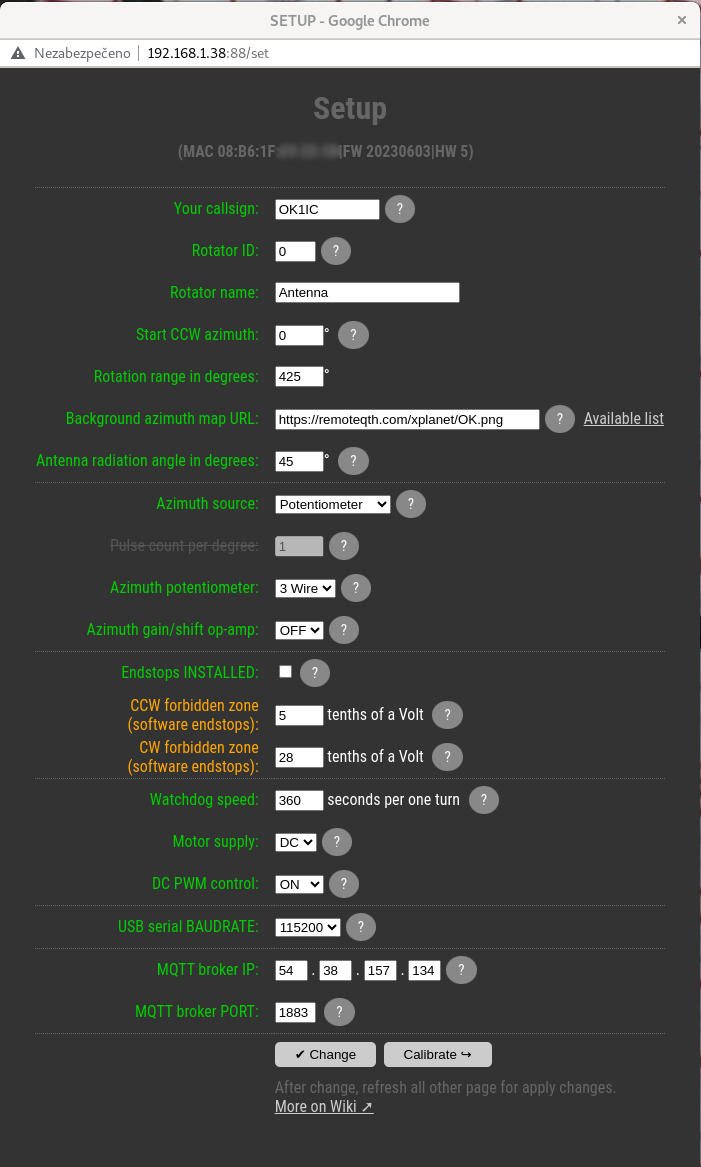
- The Setup page is used to set the basic properties of the rotator.
- You will notice that the hints for individual items are hidden under the question mark at the end of the line.
- Your callsign and Rotator ID are unique identifiers used to generate an MQTT topic in the form [callsign]/[ID]/ROT/[variable]. Changing these values requires a reload of the first page with the web MQTT client. After the first power-on, for the Callsign firmware uses the last five characters from the MAC address until a new setting is made.
- Rotator name is used to identify the rotator on the web control page.
- Start CCW azimuth is the end value of the start of rotation in the counter clockwise direction. This is the azimuth that the rotator is rotated in real conditions, if it is in this end position.
- Rotation range in degrees is the rotation range of the rotator between two (CCW and CW) endpoints in degrees.
- Use only for Elevation enables the dedicated elevation display. When used together with Vector map, the standard map is replaced by a stylized upper-semicircle sky display. In this mode, grayline, Sun position and map zoom are not used.
- Map source selects between URL bitmap and Vector map.
- Background azimuth map URL is a link to a web file with a bitmap azimuth map. Generation of your own bitmap is described in chapter Run own services.
- Map center locator defines the center of the vector map using a 6-character Maidenhead locator, for example JO60UC.
- Map zoom for the vector map is adjustable in the range 1000-20000 km directly on the main control page using the live bar below the map.
- Vector map theme selects the color style of the vector map. The default theme is Night radar.
- NTP server for grayline defines the NTP source used for grayline and Sun position calculation. The default value is pool.ntp.org.
- Grayline darkness adjusts the intensity of the night overlay in percent.
- Antenna radiation angle in degrees, is the value of the width of the radiation angle of your antenna, which will be applied in the display of the control page.
- Azimuth source is a choice between a signal source for azimuth determination.
- The Potentiometer is the default value.
- The CW/CCW pulse function is then NOT implemented now.
- The MQTT use topic ../RxAzimuth
- The azimuth potentiometer is a choice between two and three-wire variants. The two-wire variant uses a constant current source of 9mA and enables the connection of a potentiometer smaller than 1kΩ. The three-wire variant uses a constant voltage source of 9V and enables the connection of a potentiometer of 500Ω or more. You can find the connection in the Azimuth potentiometer section.
- Azimuth gain/shift op-amp, is turned ON, ONLY when using a multi-turn three-wire potentiometer, of which only one turn is used. Because one turn generates a small change at the input of the AD converter, it is possible to help amplify the preamplifier. How to do it:
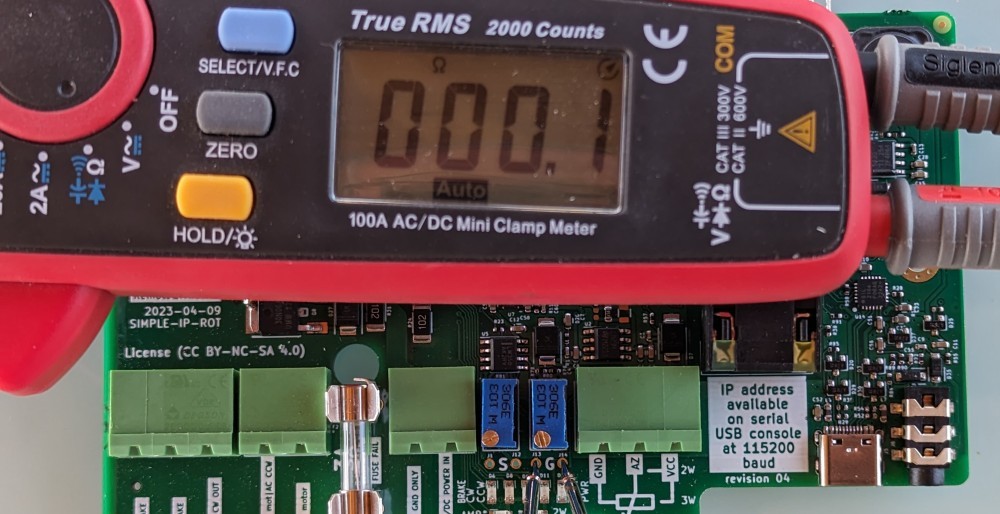
- The first step is to set the trimmers R80 and R81 to the default position. Connect the ohmmeter to the measuring point S (J1, J12) and turn the trimmer R81 counterclockwise until the ohmmeter shows a value close to 0Ω. We repeat the same thing with trimmer R80 and measuring points and G (J13, J14).
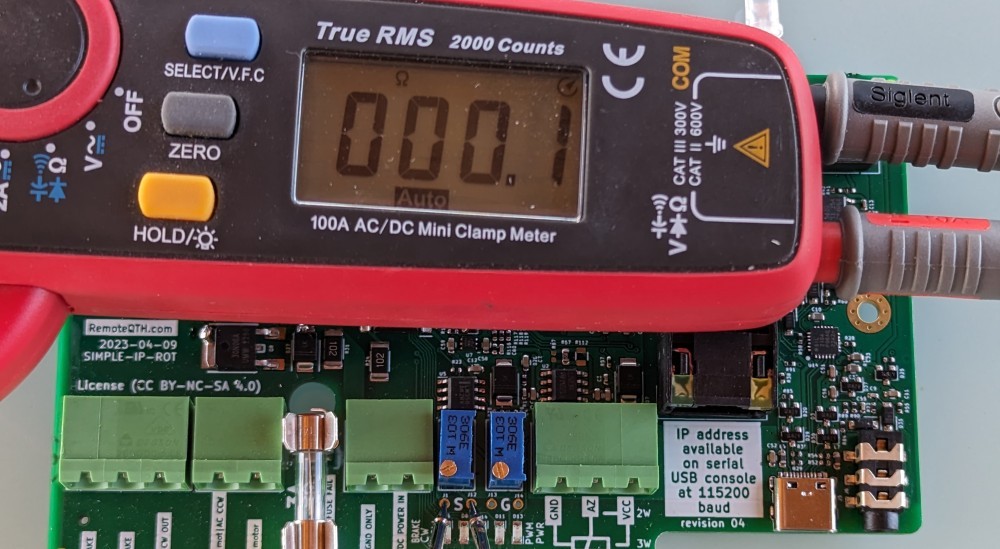
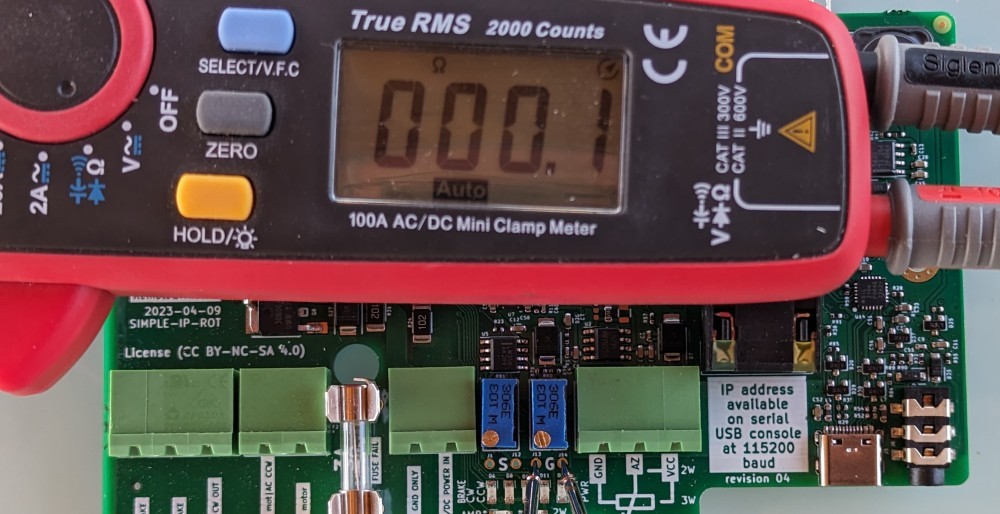
- This setting assumes that REVERSE-CONTROL and REVERSE-AZIMUTH are correctly set in the Calibration page.
- The second step is to physically turn the rotator up to the CCW endstop, which will not cause the AD converter input to shift to the left edge of the scale on the Calibration page. Therefore, we start moving the value towards the left endstop on the scale by turning the potentiometer S (R81) clockwise until we reach the left endstop on the scale, ATTENTION, after reaching the edge of the scale, do not continue turning the potentiometer, the input value of the AD converter must still move within the range scale.
- The third step is to physically turn the rotator up to the CW endstop, which will not cause the AD converter input to shift to the right edge of the scale on the Calibration page. Therefore, we increase the gain of the preamplifier by turning the potentiometer G (R80) clockwise until we reach the right endstop on the scale. ATTENTION, after reaching the edge of the scale, do not continue turning the potentiometer, the input value of the AD converter must still move within the range of the scale.
- We repeat the previous two steps until we achieve the desired result.
- Then calibrate the SAVE-CCW and SAVE-CW endpoints on the Calibration Page.
- Endstops INSTALLED, turning off this item activates software endstops, which are prohibited zones on the edges. The size of these zones is set in the following two items. If this item is enabled, the firmware relies on the hardware endstops in the rotator, including that they are not beyond the range of the measure potentiometer.
- CW/CCW forbidden zone (software endstops), are values of the range of forbidden zones in millivolts. the entire range of the rotator represents a voltage of 0 to 3.3V. The setting value will appear in the Calibration page as a yellow area at the edges of the range. If the rotator is set correctly, it only allows movement in the direction from the edge to the center. Keep the protection zone large enough to prevent damage to the rotator.
- Watchdog speed is the minimum rotation speed in seconds per one turn, which if the rotator does not reach, it will be stopped by the watchdog. Use a value at least 50% higher than the real speed to avoid false stops.
- Motor supply, is a choice between AC and DC rotator type. The DC type enables the activation of the PWM start-up and run-down ramps.
- DC PWM control activates the PWM ramp-up and ramp-down when using the DC rotator. If you use a rotator without hardware endstops, the destruction of one component (power mosfet) can cause the rotator to crash. Therefore, it is safe to connect one more active element in series (relay intended for the brake). This setup is highly recomended, see Connection section. Turning DC PWM on activates two other settings:
- PWM ramp length in steps of 25ms + displaying the length of the ramp in seconds, allows you to set how long the PWM control will regulate from 0 to 100% during acceleration, or vice versa during deceleration - WARNING - a longer ramp may result in passing the end points, it is therefore necessary to set sufficiently large margins in CW /CCW forbidden zone (software endstops). In this way, imprecise stopping will occur more often due to the overlapping of the starting and stoping ramps when rotating through small angles.
- PWM ramp start distance the distance from the target azimuth in degrees, from which the PWM ramp starts, the length of which is set by the previous value.
- By combining both values, it is possible to tune the PWM sequence so that the rotator stops as close as possible to the required azimuth. YouTube video show two parameter settings
- If there is a need to rotate to a closer azimuth than twice the “PWM ramp start distance” value, there will be a switch from the starting to the stopping ramp halfway through the journey, which affects the stopping accuracy (missing the entire stopping sequence in the combination of time and distance). Therefore, it is better to choose both values as low as possible for your antenna assembly, so that it does not overlap the start and stop ramps.
- USB serial BAUDRATE, is the setting of the communication speed of the serial console on the USB-C connector using the GS-232 protocol. Enabled commands
- ? display the IP address of the rotator
- R clockwise rotation
- L counter clockwise rotation
- A or S CW/CCW rotation Stop
- C show antenna direction value
- Mxxx rotate to azimuth, degree represent with three number
- O CCW calibration
- F CW calibration
- MQTT broker IP, IPV4 address of the MQTT broker server
- If the first digit is zero, MQTT is disabled
- MQTT broker PORT, number of the IP port on which the MQTT broker runs.
- Change button, save actual value.
- Calibrate button open Calibration web page.
Calibrate web page
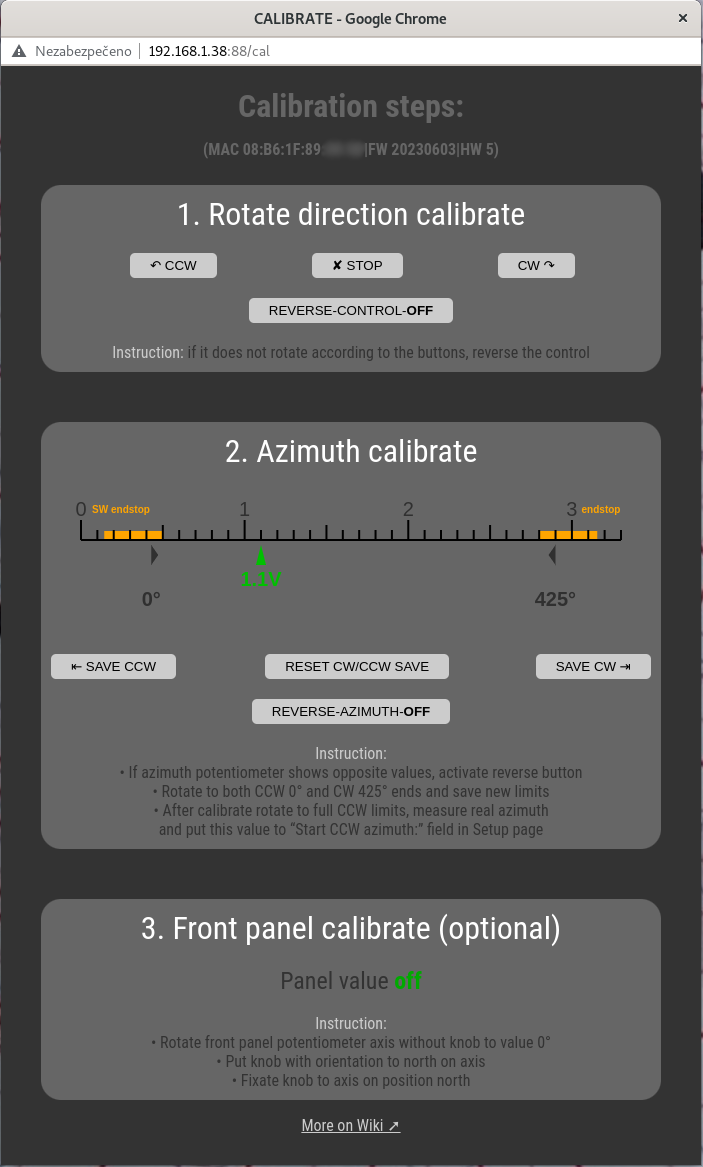
Calibration is divided into three steps
- Rotate direction calibrate
So that it is not necessary to observe the polarity of the rotator motor connection, you can use the CCW, CW and STOP buttons to test the direction of rotation. If the rotator rotates in a different direction than the control button, you can reverse the direction using the REVERSE-CONTROL button. - Azimuth calibrate
The scale shows the status of the input AD converter in the range of 0 to 3.3V. Due to activated software linearization, regions in the range of tens of mV are not available. If software endstops are activated in the Setup web page, the prohibited zones at the edges of the range will be displayed in yellow. In the lower part there is an arrow showing the current read value of the AD converter. There are gray arrows on the edges, showing the calibration values of CCW and CW stops. How to calibrate:- Turn the rotator briefly using the CW, CCW and STOP buttons in the previous section and watch the movement of the current value of the AD converter. The correct direction is left for CCW and right for CW. If the arrow moves in reverse, invert it using the REVERSE-AZIMUTH button
- Then rotate the rotator counterclockwise until it is stopped by a software or hardware endstop. After stopping, save the value with the help of the SAVE CCW button.
- Continue rotating the rotator clockwise until it is stopped by a software or hardware endstop. After stopping, save the value with the help of the SAVE CW button.
- The RESET CW/CCW SAVE button is used to set the default values if the setting needs to be repeated.
- After calibrate, rotate to full CCW limits, measure real azimuth, and put this value to “Start CCW azimuth:” field in Setup page.
- Changes to settings in the map control page will be reflected after the page is reloaded.
- Front panel calibrate (optional) if install Optional front panel you can calibrate knob
- Rotate front panel potentiometer axis without knob to value 0°
- Put knob with orientation to north on axis
- Fixate knob to axis on position north
Control via optional front panel
The front panel contains only two active elements:
- Button for setting the required azimuth - if the front panel is installed, turning the knob will make a quick change of the target azimuth, but it is not very accurate. The rotation of the rotator can be monitored on the control page of the web interface, or via MQTT, optionally also on the Gyrotator unit. Attention, the direction of the control knob on the front panel will no longer correspond to the real rotation of the rotator, if you change its azimuth from another source, for example from a web browser.
- The status LED has three states
- RED lights up during rotating.
- GREEN lights up if the rotator has reached the set azimuth and stopped.
- FLASHES GREEN if the rotator has stopped and has not reached the target azimuth.
Manually controll
Manual control is available via the 3.5mm stereo jack connector on the back of the electronics. By switching the left or right channel, it is possible to control clockwise or counterclockwise rotation. Connection is here.
Your CW key can easily be used as a switch control.
This control is suitable for service movements or if you operate the Interface on your desk.
Running own services
MQTT broker
MQTT is a universal protocol that is used to communicate the rotator with other devices. The control node transmitting this information is the MQTT broker. The default settings of the rotor use the public MQTT broker of the Internet at the address remoteqth.com. In order to avoid dependence on an Internet connection or the availability of a public MQTT broker, we recommend that you install your own MQTT broker on a Raspberry PI or other device in the local network. For this you can use some of the public instructions like this one (without installing NodeRed).
After installation, change the settings of two items (MQTT broker IP and MQTT broker port) in the Setup section, according to the IP address of your local MQTT broker.
Background azimuth Map generator with grayline
This section is used only when Map source = URL bitmap.
The RemoteQTH server provides a live grayline world map generation for selected DXCC countries at address https://remoteqth.com/xplanet/ (adding others upon request from OK1HRA). The entire path to the map is entered in the Setup page in the item Background azimuth map URL.
If you don't want to depend on the internet connection or remoteqth.com server functionality, you can run the real generator on any Linux machine, for example Raspberry PI. You need two functions for this:
- http server, example here
- Script generating bitmap
- Install xplanet with code
sudo apt install xplanet xplanet-images
- Create line in /etc/crontab
*/15 * * * * web /usr/bin/xplanet -window -longitude 13.8 -latitude 50.0 -geometry 600x600 -projection azimuthal -num_times 1 -output /var/www/remoteqth/xplanet/OK.png
Where to replace | web user a valid user of your system | numerical coordinates of longitude and latitude with your requested coordinates | path /var/www/remoteqth/xplanet/ for the path published by your web server | file name OK.png for your desired file name
- Enter the resulting path to the generated bitmap in the Background azimuth map URL item on the Setup page.
Online Map generator
Available on URL ok2pbq.atesystem.cz/prog/ae_map.php
Known bugs
- If the continuous draw of your motor does not exceed the allowed limit, but the fuse still blows, the problem may be in the starting current. This current is naturally limited by the length of the power cable. If the problem persists even with the rotator on the mast, supplement the connection with a starting resistor (B57237S0109M) in series with the rotator motor.